***
title: Initial Voximplant Setup
subtitle: Set up the minimum Voximplant configuration for Voice AI scenarios
----------------------------------------------------------------------------
VoxEngine setup is centered on three components:
* `Applications`: top-level containers for each environment
* `Scenarios`: JavaScript programs that control calls
* `Routing rules`: destination patterns that trigger scenarios
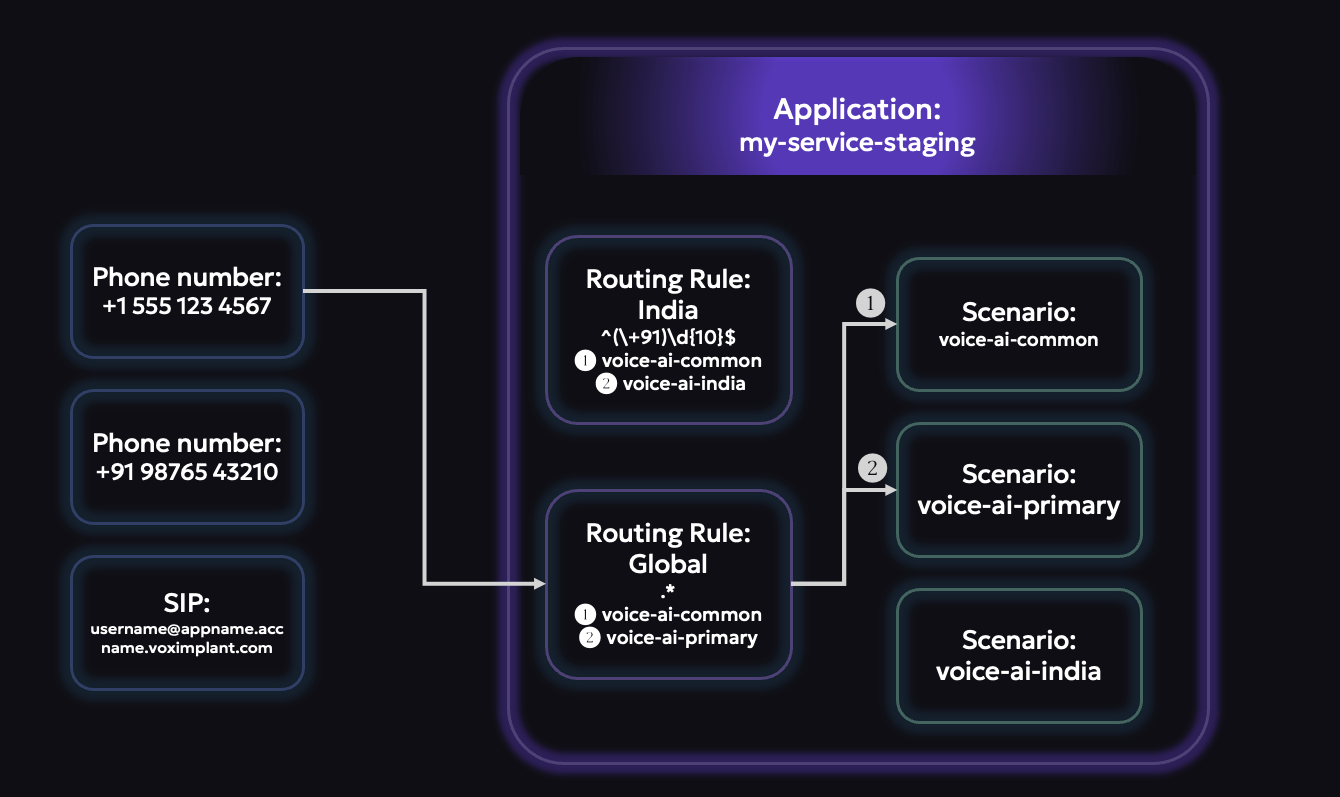
For your first project, we recommend configuring one application first, adding one scenario, and attaching a single routing rule that can receive test traffic.
you can start by doing this via Voximplant's Control Panel (`manage.voximplant.com`) and later use the management API to do this programmatically.
## Setup order
## Create an account
Use `manage.voximplant.com` to configure applications, scenarios, routing, channels, and storage.
Go to [manage.voximplant.com](https://manage.voximplant.com).
Sign in with your existing account, or create a new one at [Sign up](https://manage.voximplant.com/auth/sign_up).
After login, confirm you can access the application list and project navigation.
## Create an application
A Voximplant application is the top-level container for a task or environment. It holds scenarios, users, routing rules, and attached numbers.
In Control Panel, open **Applications**.
Click **New application** (or **Create** from the empty state).
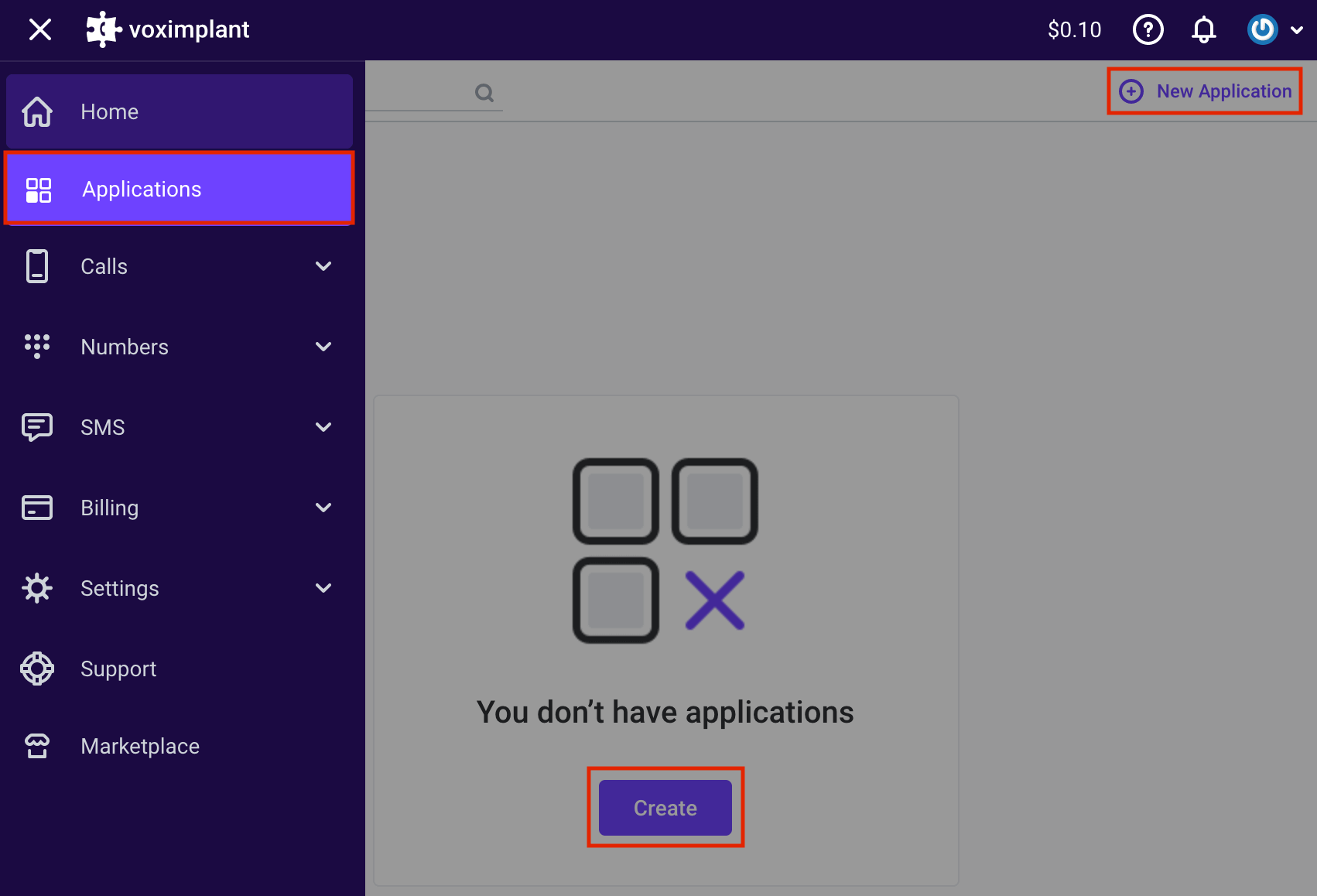
Set the application name (for example `voice-ai-staging`) and create it.
Use different applications for projects that do not share the same Voximplant resources - `prod-agent-global` vs. `new-agent-prototype` -
or for intentional isolation - such as `voice-ai-staging` vs. `voice-ai-production`.
#### More information:
* [Applications setup guide](https://voximplant.com/docs/getting-started/basic-concepts/applications)
* [Applications HTTP API reference](https://voximplant.com/docs/references/httpapi/applications)
## Create a scenario
Scenarios are JavaScript documents inside an application. VoxEngine executes them when a routing rule matches.
Select **Scenarios**.
Click the plus button to create a scenario.
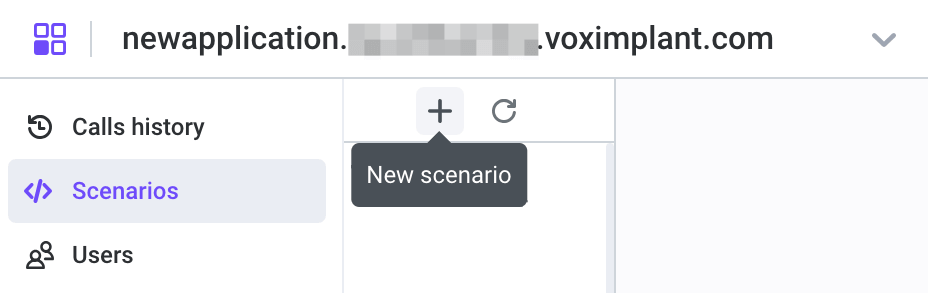
Name the scenario and paste your example code.
We recommend that you keep scenario names short and specific since there are situations where you may use this channel
name elsewhere (like with SIP routing).
#### More information:
* [Scenarios setup guide](https://voximplant.com/docs/getting-started/basic-concepts/scenarios)
* [Scenarios HTTP API reference](https://voximplant.com/docs/references/httpapi/scenarios)
## Setup routing
Routing rules decide which scenario starts for an incoming destination or a manually triggered outbound flow. For example,
`^(\+91)\d{10}$` could go to an India-specific voice AI scenario, while `^(\+1)\d{10}$` could go to a US-specific one.
Open your application and go to **Routing**.
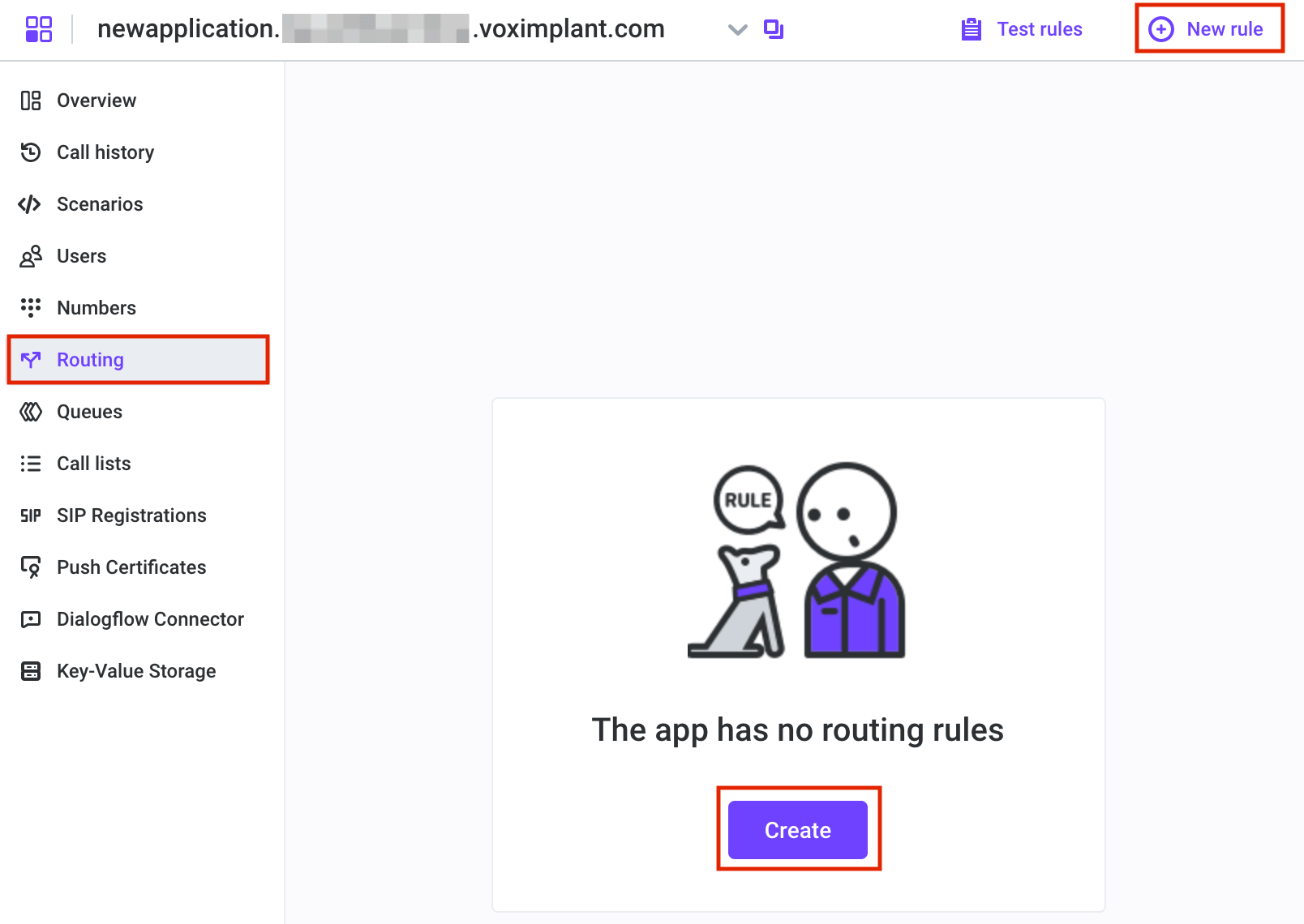
Click **Create** / **New rule**.
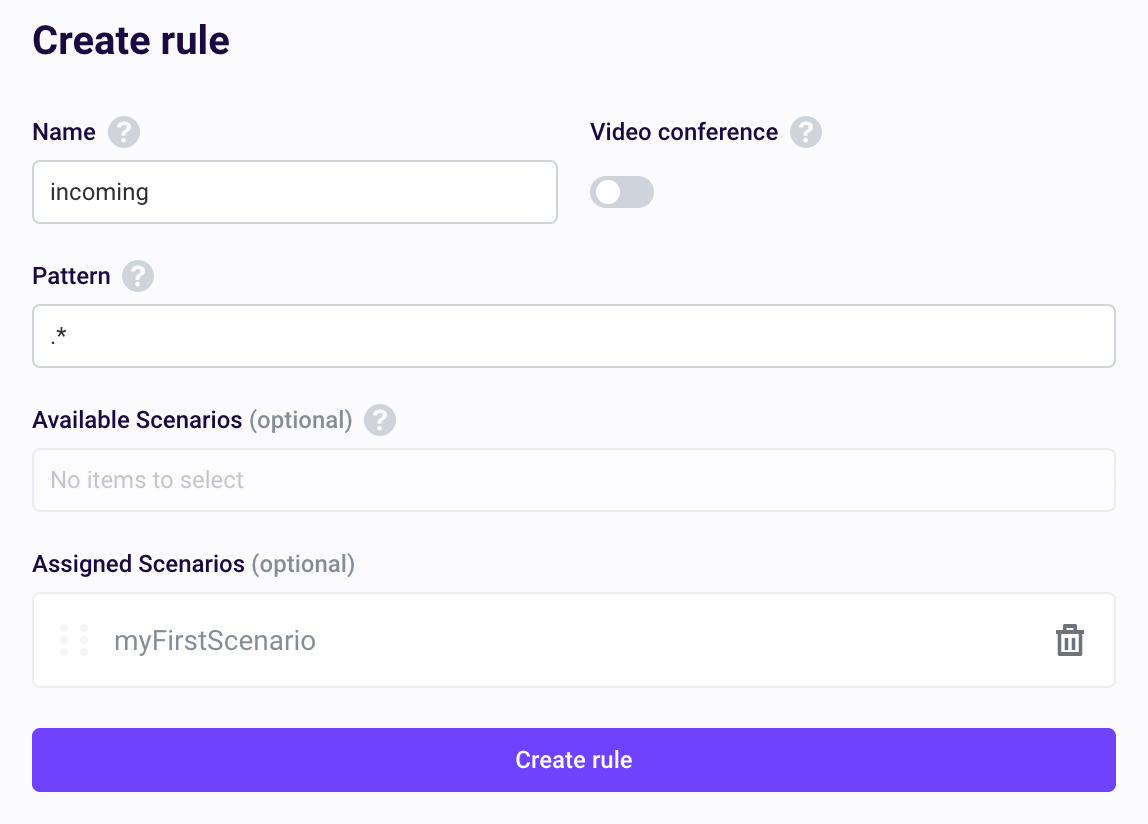
Set a rule name and a destination pattern.
Attach one or more scenarios in priority order.
Save the rule.
For your first rule, we recommend a using `.*` to matches all destinations. You can create more specific rules later as needed.
Regular Expression pattern basics:
* `.*` matches any destination (good as a starting point & fallback)
* `+?[1-9]\d{1,14}` matches E.164-style numbers
* `123.+` matches destinations starting with `123`
Routing evaluation is top-to-bottom. The first matching rule is used.
As you get more advanced with more unique situations, you can consider patterns such as:
* One explicit test rule with a unique alias/pattern
* One fallback global rule (`.*`) below it
Voximplant also includes a rule check that will help verify your patterns.
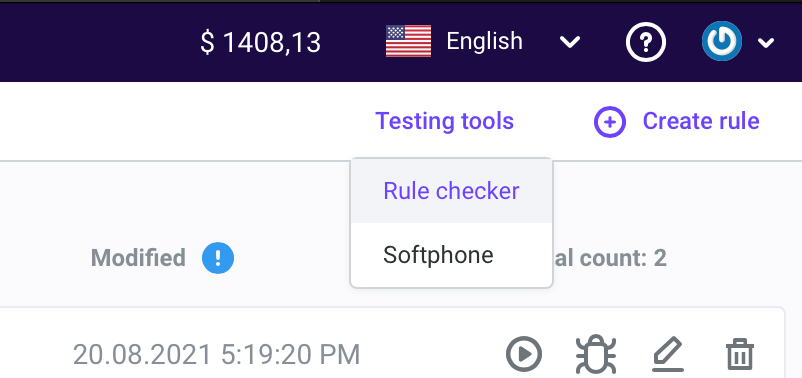
#### More information:
* [Routing rules setup guide](https://voximplant.com/docs/getting-started/basic-concepts/routing-rules)
* [Routing rules HTTP API reference](https://voximplant.com/docs/references/httpapi/rules)
## Application Storage
Voximplant provides a unique key-value store for every application, known as `ApplicationStorage`.
The examples in this guide use `ApplicationStorage` to hold API keys for external services.
You can also use it for small config values like destination numbers, feature flags, and shared variable values needed across instances of your scenarios like counters.
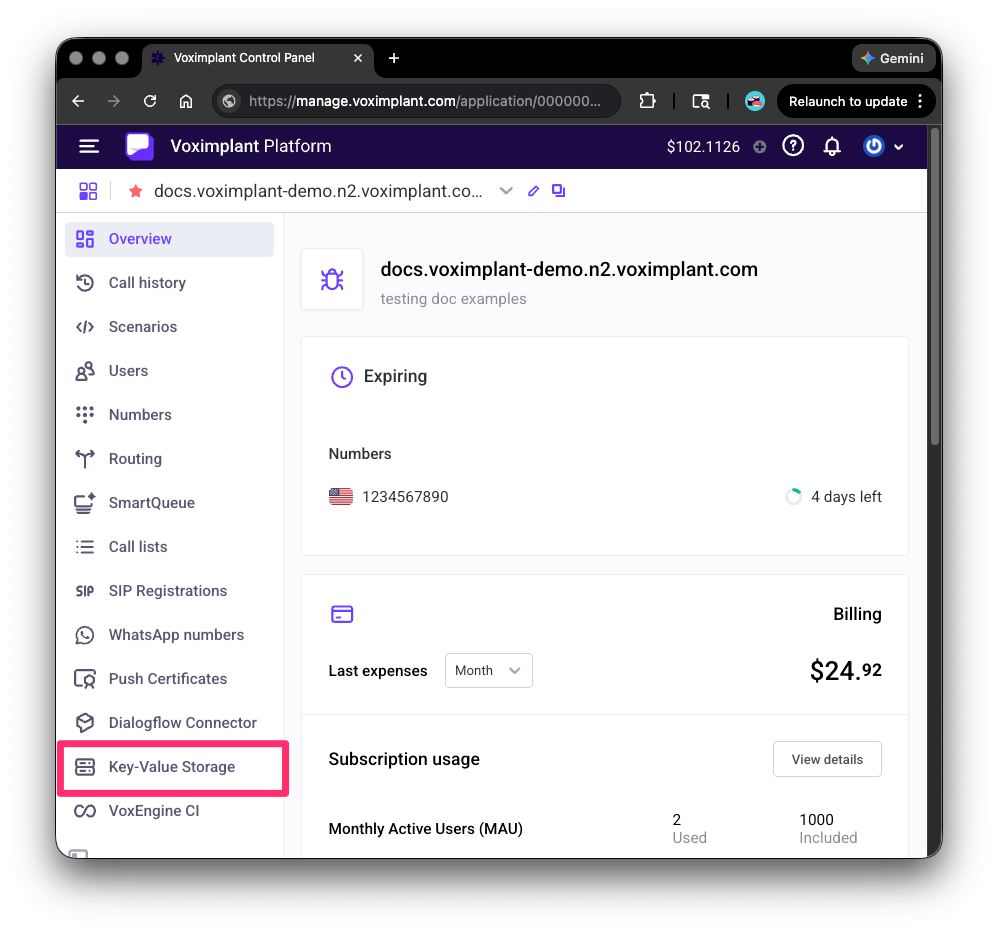
Example:
```js title="Read a required key"
require(Modules.ApplicationStorage);
const apiKey = (await ApplicationStorage.get("OPENAI_API_KEY")).value;
```
#### More information:
* [ApplicationStorage VoxEngine API reference](https://voximplant.com/docs/references/voxengine/applicationstorage)
* [Voximplant key-value storage announcement blog](https://voximplant.com/blog/voximplant_key_value_storage)