> For a complete documentation index, fetch https://docs.voximplant.ai/llms.txt
# Initial Voximplant Setup
> For the complete documentation index, see [llms.txt](/llms.txt).
VoxEngine setup is centered on three components:
* `Applications`: top-level containers for each environment
* `Scenarios`: JavaScript programs that control calls
* `Routing rules`: destination patterns that trigger scenarios
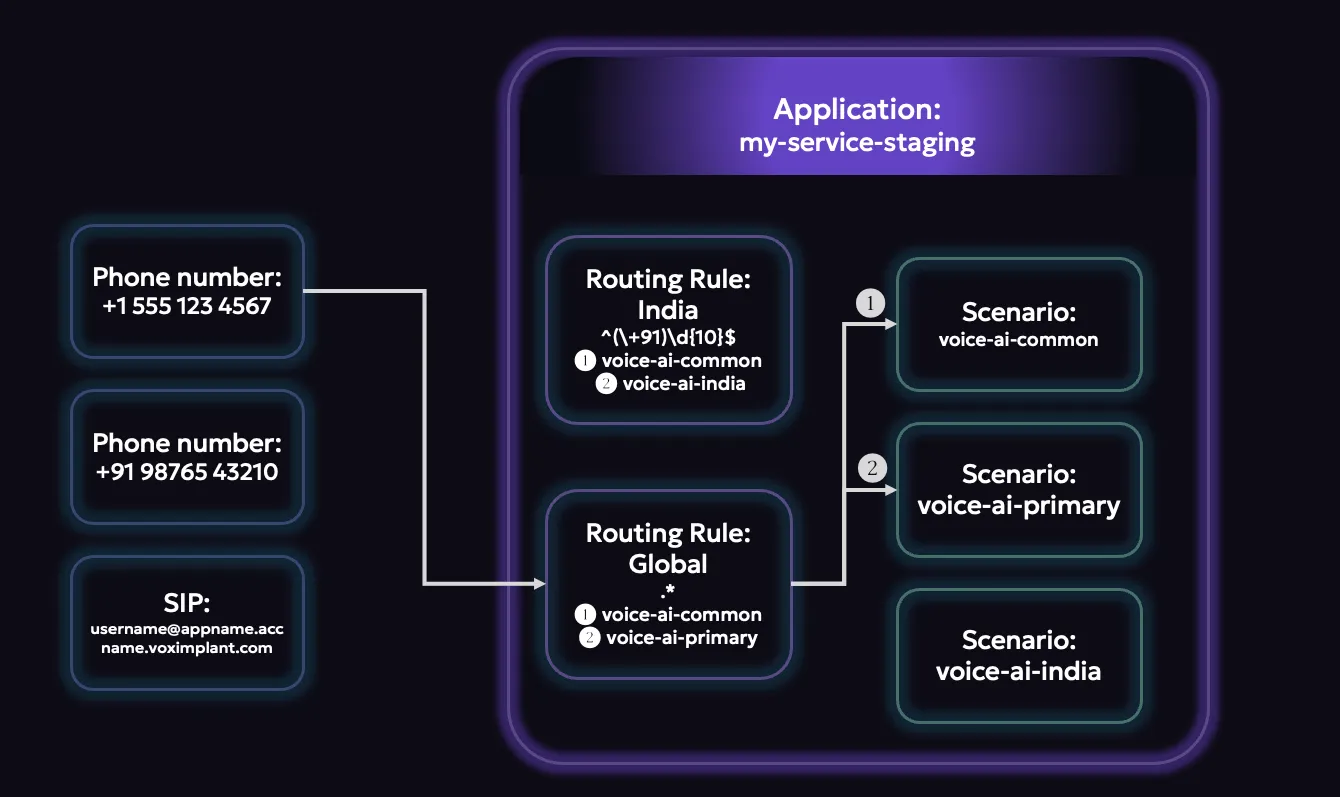
For your first project, we recommend configuring one application first, adding one scenario, and attaching a single routing rule that can receive test traffic.
you can start by doing this via Voximplant's Control Panel (`manage.voximplant.com`) and later use the management API to do this programmatically.
## Setup order
#### \[Create an account]\(#create-an-account)
#### \[Create an application]\(#create-an-application)
#### \[Create a scenario]\(#create-a-scenario)
#### \[Setup routing]\(#setup-routing)
#### \[Application Storage]\(#application-storage)
## Create an account
Use `manage.voximplant.com` to configure applications, scenarios, routing, channels, and storage.
#### Open manage.voximplant.com
Go to [manage.voximplant.com](https://manage.voximplant.com).
#### Sign in or create an account
Sign in with your existing account, or create a new one at [Sign up](https://manage.voximplant.com/auth/sign_up).
#### Verify access
After login, confirm you can access the application list and project navigation.
**Sign up for a Voximplant account**
## Create an application
A Voximplant application is the top-level container for a task or environment. It holds scenarios, users, routing rules, and attached numbers.
#### Open Applications
In Control Panel, open **Applications**.
#### Create a new application
Click **New application** (or **Create** from the empty state).
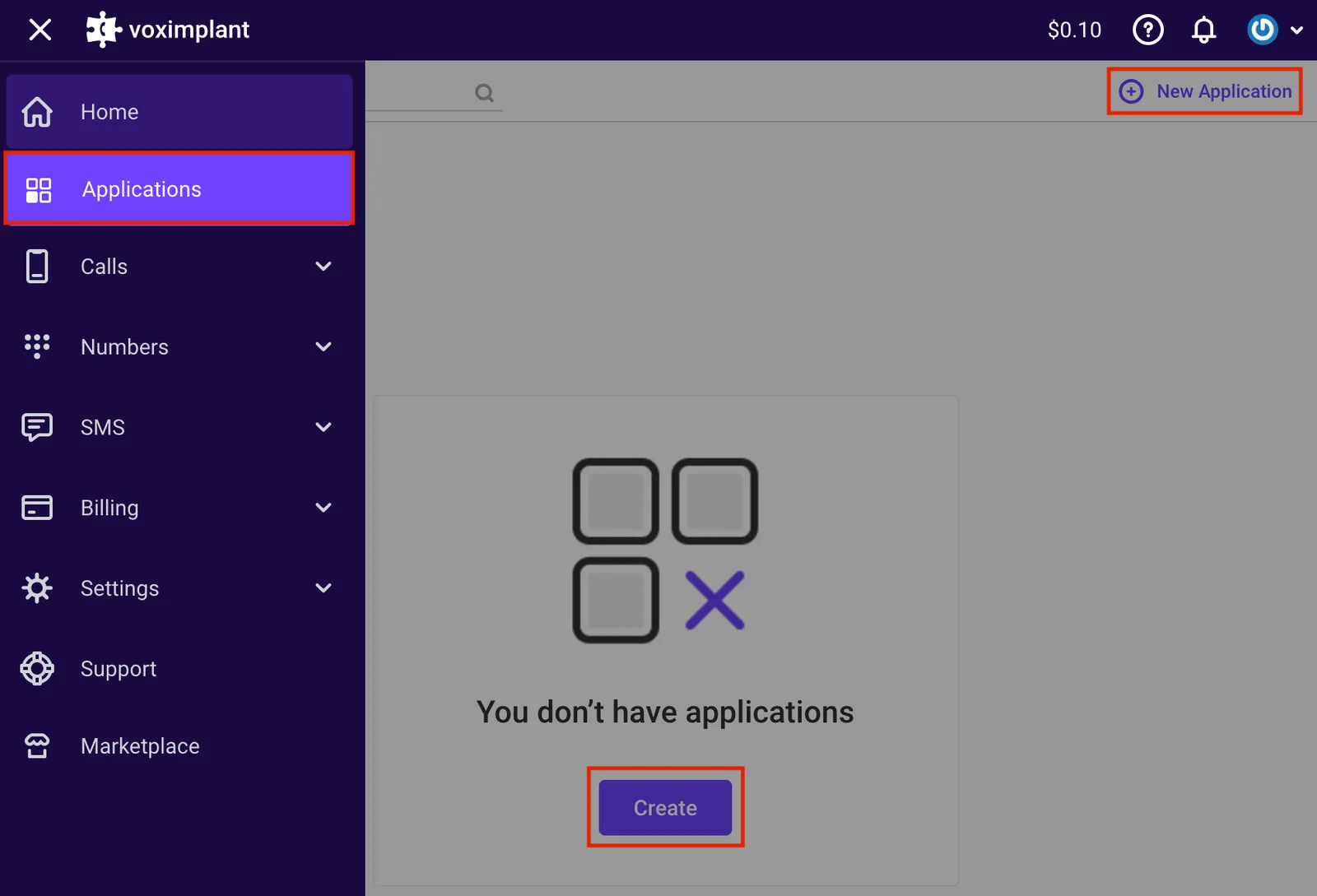
#### Name and save the application
Set the application name (for example `voice-ai-staging`) and create it.
Use different applications for projects that do not share the same Voximplant resources - `prod-agent-global` vs. `new-agent-prototype` -
or for intentional isolation - such as `voice-ai-staging` vs. `voice-ai-production`.
#### More information:
* [Applications setup guide](/platform/voxengine/applications)
* [Applications HTTP API reference](/api-reference/management-api/reference/applications)
## Create a scenario
Scenarios are JavaScript documents inside an application. VoxEngine executes them when a routing rule matches.
#### Open your application
#### Go to Scenarios
Select **Scenarios**.
#### Create a scenario
Click the plus button to create a scenario.
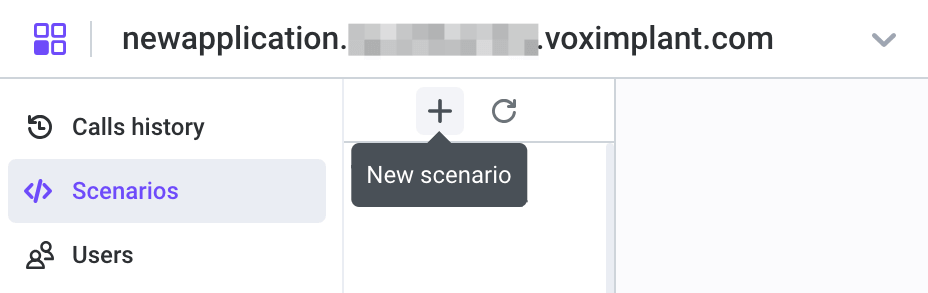
#### Name and paste code
Name the scenario and paste your example code.
We recommend that you keep scenario names short and specific since there are situations where you may use this channel
name elsewhere (like with SIP routing).
#### More information:
* [Scenarios setup guide](/platform/voxengine/scenarios)
* [Scenarios HTTP API reference](/api-reference/management-api/reference/scenarios)
## Setup routing
Routing rules decide which scenario starts for an incoming destination or a manually triggered outbound flow. For example,
`^(\+91)\d{10}$` could go to an India-specific voice AI scenario, while `^(\+1)\d{10}$` could go to a US-specific one.
#### Open Routing
Open your application and go to **Routing**.
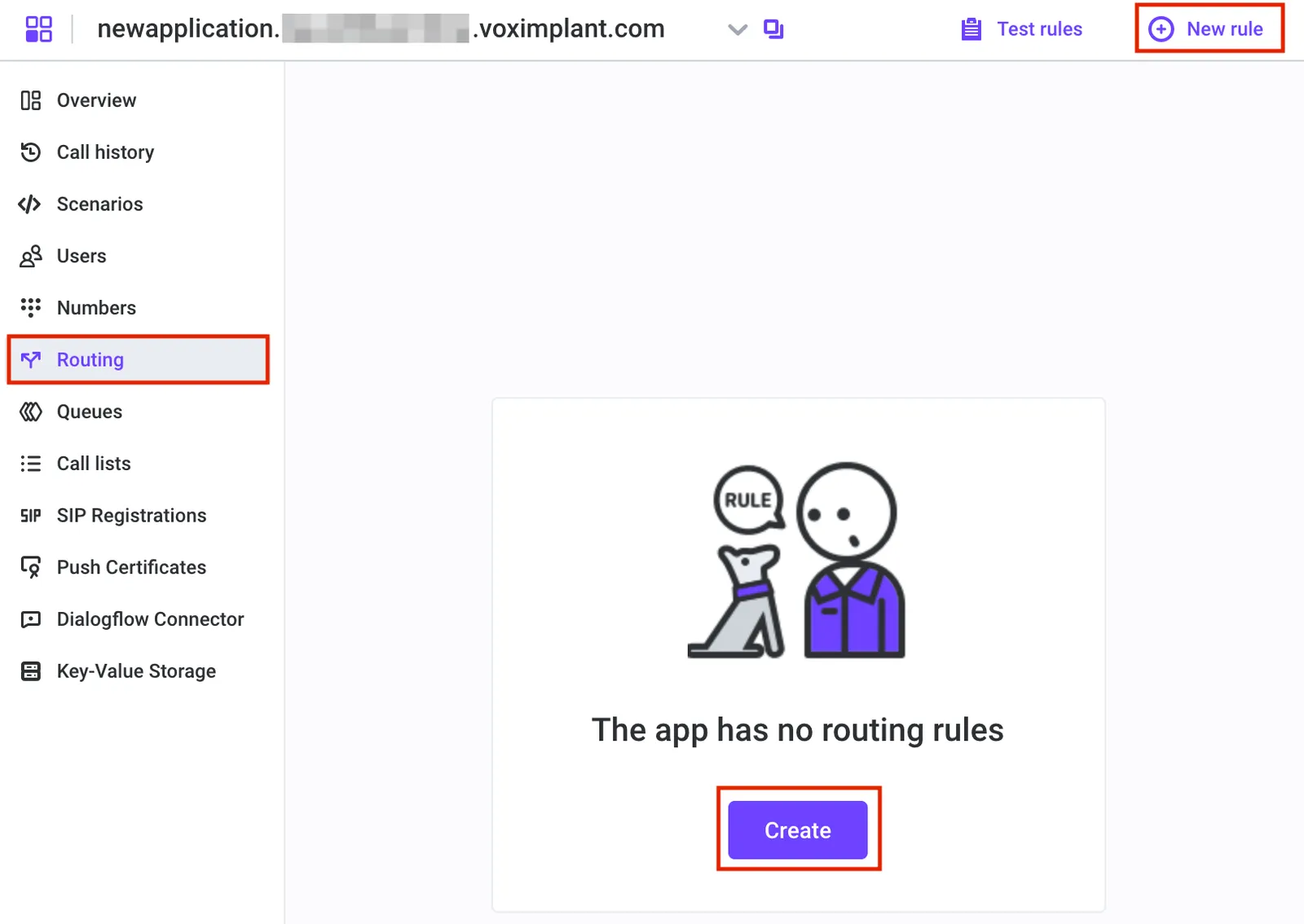
#### Create a rule
Click **Create** / **New rule**.
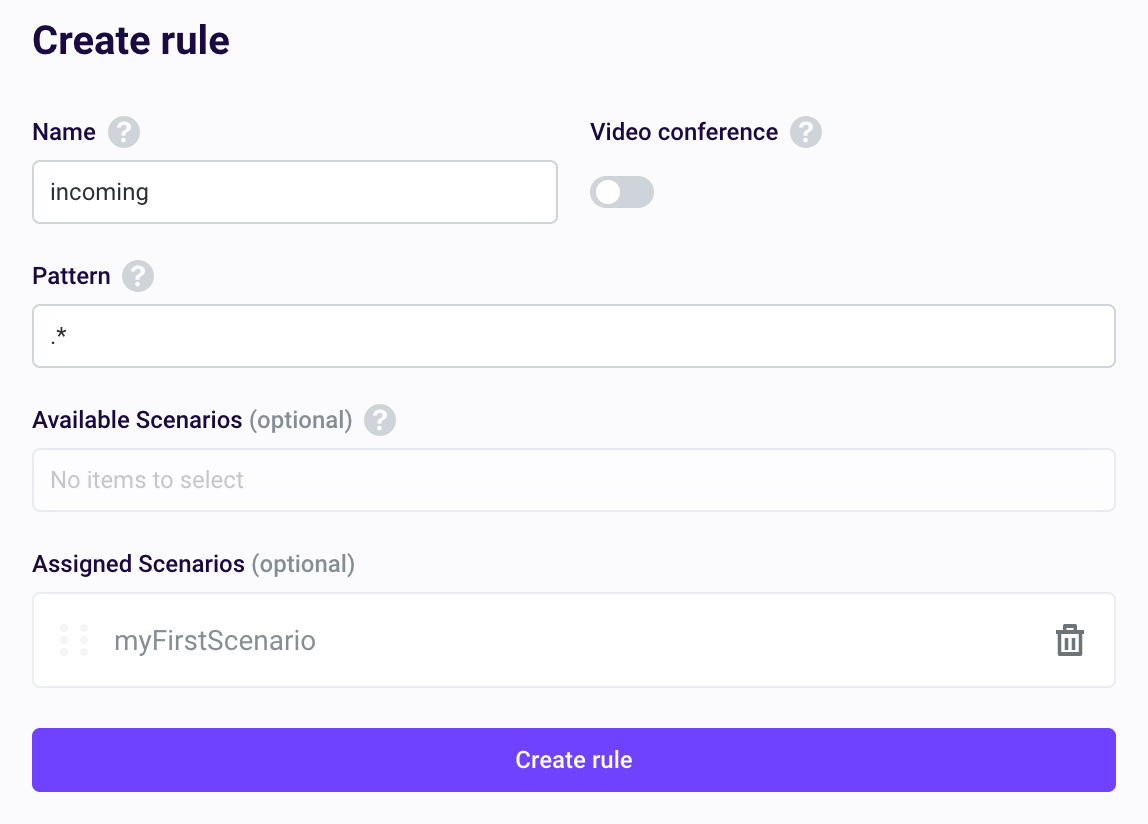
#### Set rule and pattern
Set a rule name and a destination pattern.
#### Attach scenarios
Attach one or more scenarios in priority order.
#### Save
Save the rule.
> **Note**
>
> For your first rule, we recommend a using `.*` to matches all destinations. You can create more specific rules later as needed.
Regular Expression pattern basics:
* `.*` matches any destination (good as a starting point & fallback)
* `+?[1-9]\d{1,14}` matches E.164-style numbers
* `123.+` matches destinations starting with `123`
Routing evaluation is top-to-bottom. The first matching rule is used.
As you get more advanced with more unique situations, you can consider patterns such as:
* One explicit test rule with a unique alias/pattern
* One fallback global rule (`.*`) below it
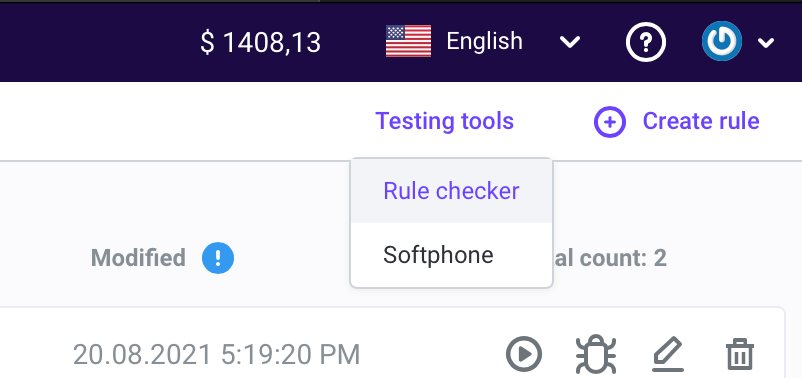
Voximplant also includes a rule check that will help verify your patterns.
#### More information:
* [Routing rules setup guide](/platform/voxengine/routing-rules)
* [Routing rules HTTP API reference](/api-reference/management-api/reference/rules)
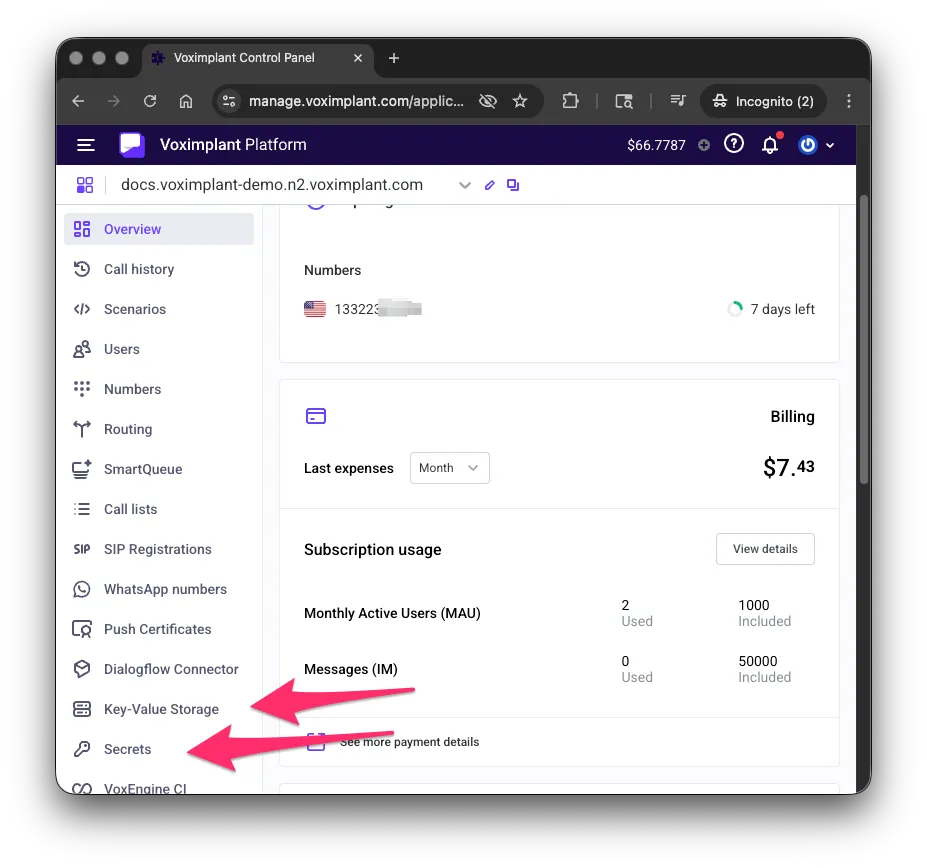
## Application Storage and Secrets
Voximplant provides two separate stores for every application:
* **Secrets** — for sensitive values such as API keys, tokens, and passwords. Use `VoxEngine.getSecretValue('')` to read them.
* **Application Storage** (`ApplicationStorage`) — a key-value store for small non-sensitive config values like destination numbers, feature flags, and shared counters across scenario instances.
The examples in this guide use **Secrets** to hold API keys for external services (for example `OPENAI_API_KEY`) and `ApplicationStorage` for non-sensitive config.
Example:
**`Read a secret and a config value`**
```js title="Read a secret and a config value"
require(Modules.ApplicationStorage);
const apiKey = VoxEngine.getSecretValue('OPENAI_API_KEY');
const calleeDestination = (await ApplicationStorage.get("CALLEE_DESTINATION")).value;
```
#### More information:
* [Secrets guide](/platform/voxengine/secrets)
* [ApplicationStorage VoxEngine API reference](/api-reference/voxengine/application-storage)
* [Voximplant key-value storage announcement blog](https://voximplant.com/blog/voximplant_key_value_storage)