***
title: SIP
subtitle: Connect SIP PBX and SIP Trunking flows to Voximplant Voice AI scenarios
---------------------------------------------------------------------------------
# SIP and SIP Trunking overview
Use SIP when you need to connect PBX infrastructure, enterprise SBCs, cloud telephony providers, or existing SIP trunks.
`SIP Trunking` is the common production pattern for routing calls between your telephony core and Voximplant-managed Voice AI scenarios.
Voximplant supports SIP calling in three distinct models:
* [SIP trunking based on number-based routing](#sip-trunking-number-based)
* [User-based SIP routing](#sip-user-based) where you create a Voximplant user for each SIP endpoint and route based on username
* [SIP registration](#sip-registration-extension) where Voximplant registers on external SIP infrastructure and is treated like an extension
# Handling SIP calls with external SIP Infrastructure
## Security and allow-listing
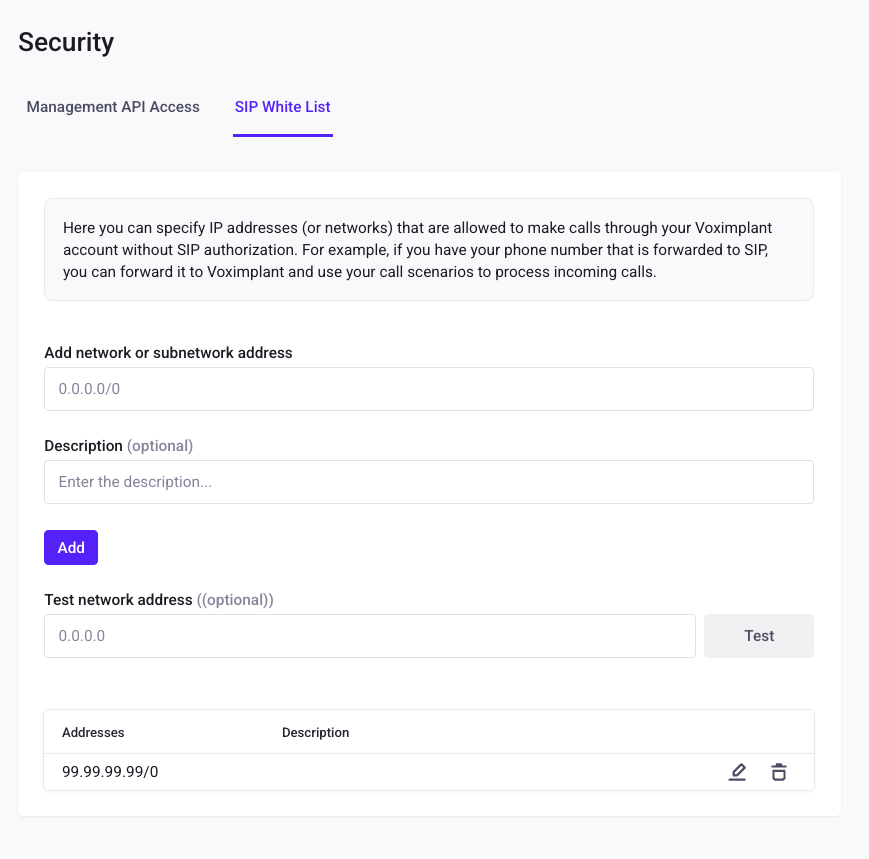
If your SIP infrastructure uses a fixed public IP, add it to the SIP allow-list in Voximplant security settings.
For firewall configuration, use the official Voximplant SIP/media IP sources below:
* [Where can I get IP information about Voximplant servers?](https://voximplant.com/help/faq/where-can-i-get-ip-information-about-voximplant-servers)
* [Media/SBC endpoint API (`getMediaResources`)](https://api.voximplant.com/getMediaResources?with_sbcs)
## SIP trunking with number-based routing
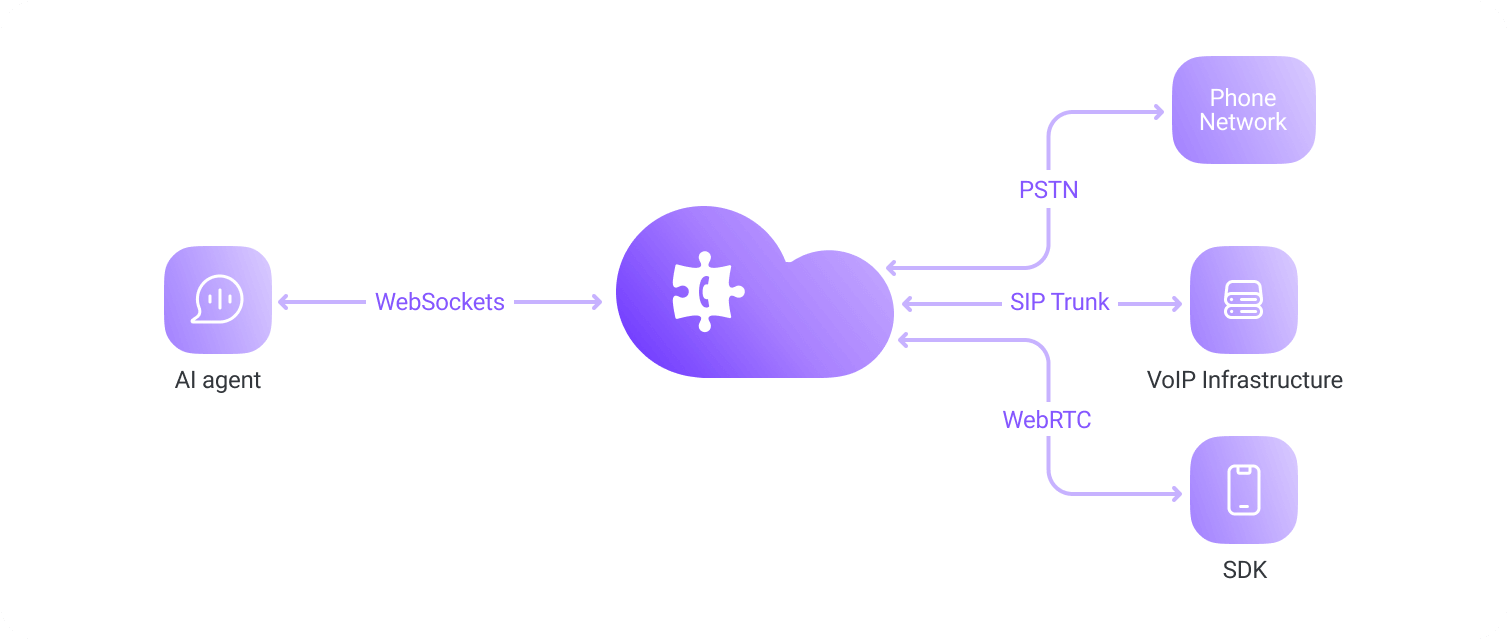
Use this when your PBX/trunk forwards calls by dialed number.
In your Voximplant application, create a routing rule whose pattern matches the inbound destination number format you expect - i.e. `^\\+1[2-9]\\d{9}$`.
Attach your inbound Voice AI scenario to that rule.
See [Configure Voximplant - Create a scenario](/guides-configure-voximplant-overview#setup-routing) for details.
Route calls to:
`number@application.account.voximplant.com`
where `number` matches the routing-rule pattern, `application` is your Voximplant [application name](/guides-configure-voximplant-overview#create-an-application), and `account` is your Voximplant account name.
Alternatively, you can also use this format `app_id#account_id#destination@sip.voximplant.com` where `destination` must be a number
and `app_id` and `account_id` are the numeric ids found in your application settings.
If your PBX has fixed public IPs, allow-list them in
`Settings -> Security -> SIP White List` in `manage.voximplant.com`.
## User-based SIP routing (Voximplant user per endpoint)
Use this when each SIP endpoint should authenticate as a distinct user and route by username or a pattern based on usernames.
Create one Voximplant user per SIP endpoint (agent seat, extension, or softphone identity).
In `manage.voximplant.com`, go to **Applications**, open your app, then open **Users**.
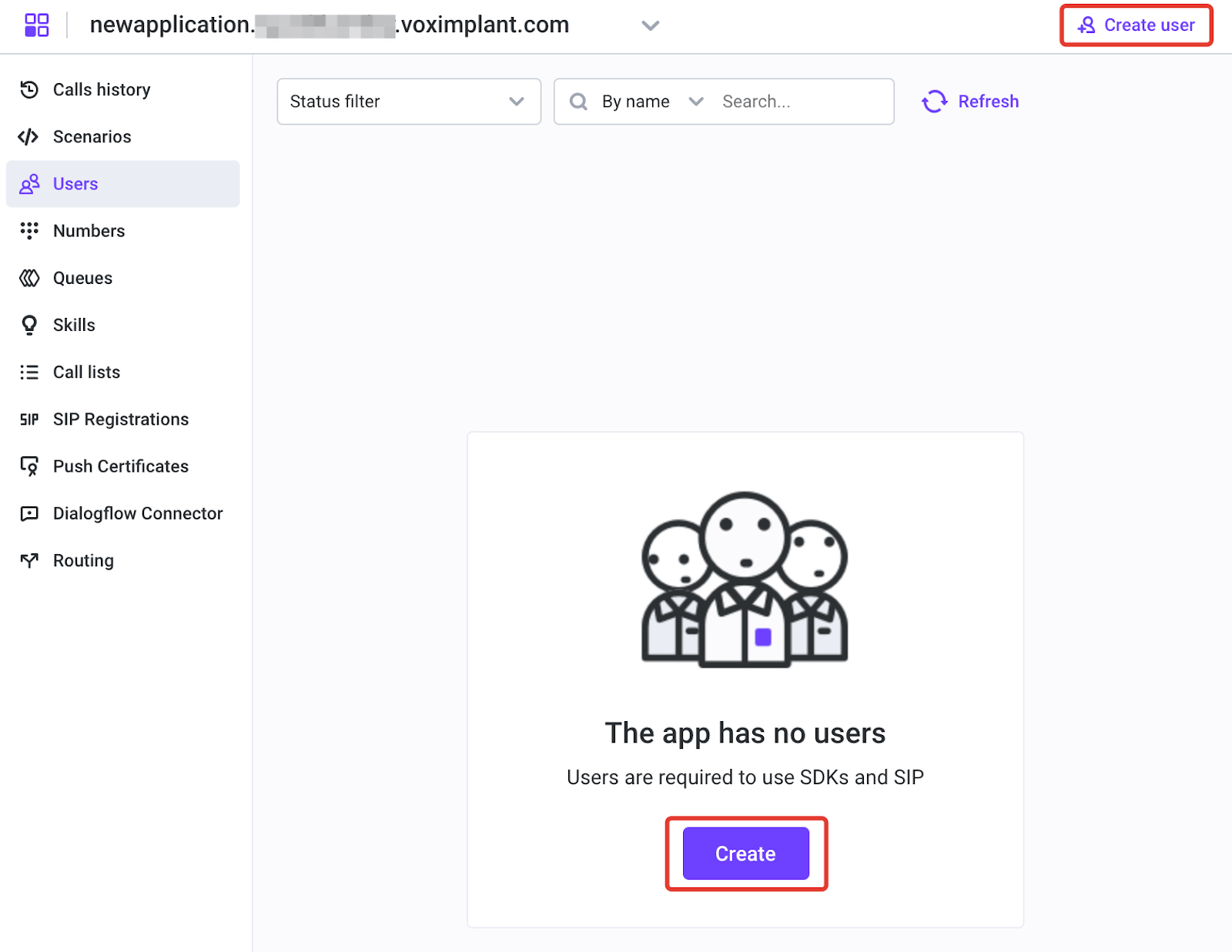
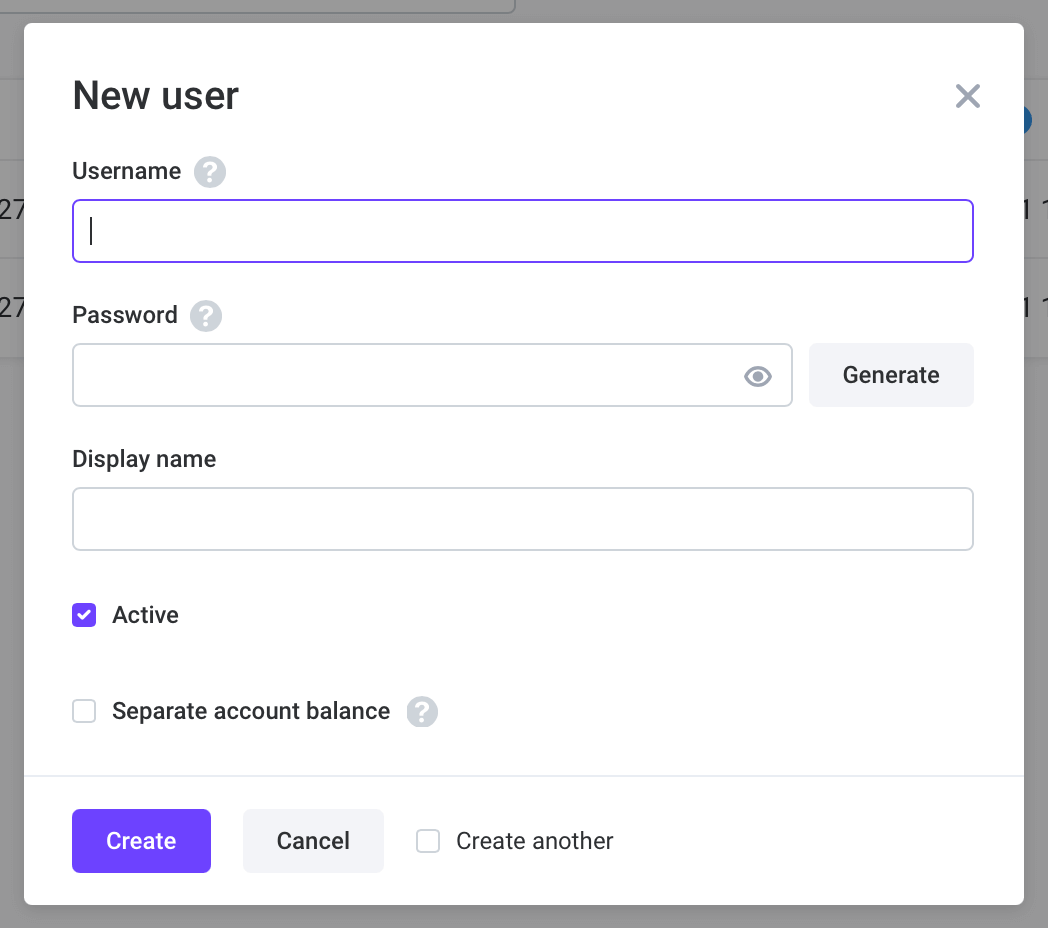
Create one user per endpoint (for example: `support01`, `support02`) and set a strong password.
Keep this username/password pair because SIP clients will use it for registration.
Create routing rules that match the target username or alias and attach the relevant scenario.
See [Configure Voximplant - Create a scenario](/guides-configure-voximplant-overview#setup-routing) for details.
Login to this account on your SIP software using
`user@application.account.voximplant.com`
and the Voximplant user password.
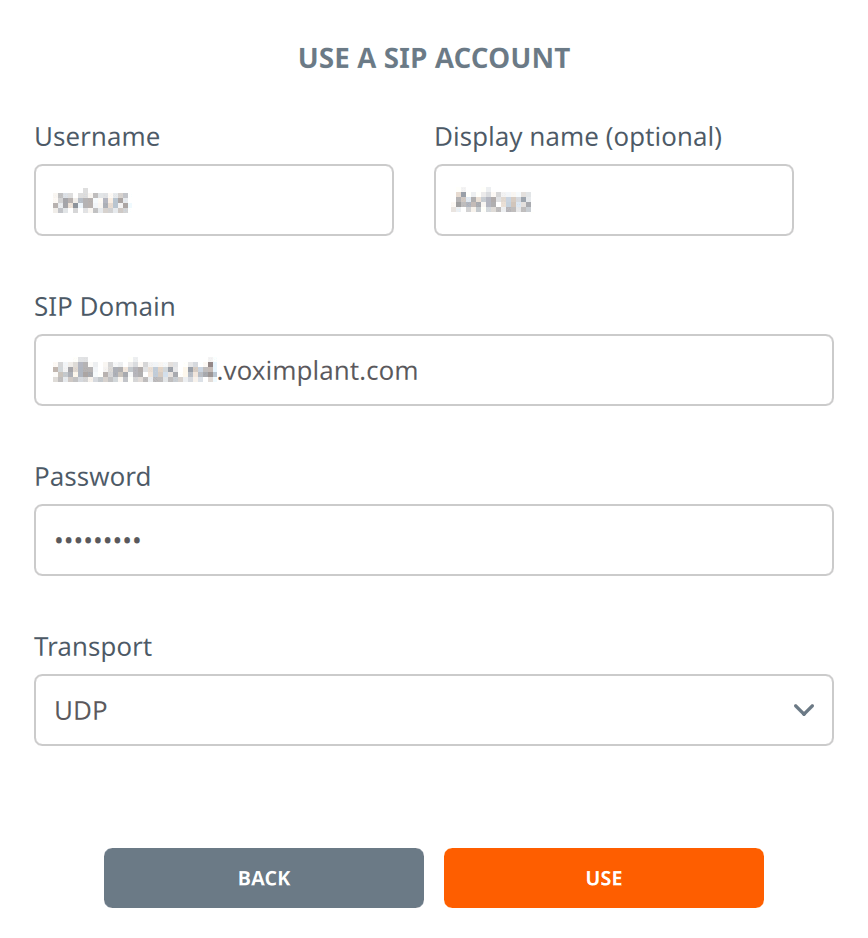
You can specify UDP/TCP transport, or specify TLS transport to secure your connection.
Some SIP infrastructure may require that you specify the password and options in the address: `sip:username:password@domain:5061;transport=tls`
Now you can place calls with your SIP software to and from that user.
If you automate provisioning, you can also create users via the Management API: [AddUser](https://voximplant.com/docs/references/httpapi/users#adduser).
## SIP registration (Voximplant as registered extension)
Use this when Voximplant should register to external SIP infrastructure (such as a PBX) and behave like a phone connected to that infrastructure.
In your PBX or SIP provider, create the extension / ID Voximplant will use.
In Voximplant settings, create a SIP registration with that extension's domain, username, and password.
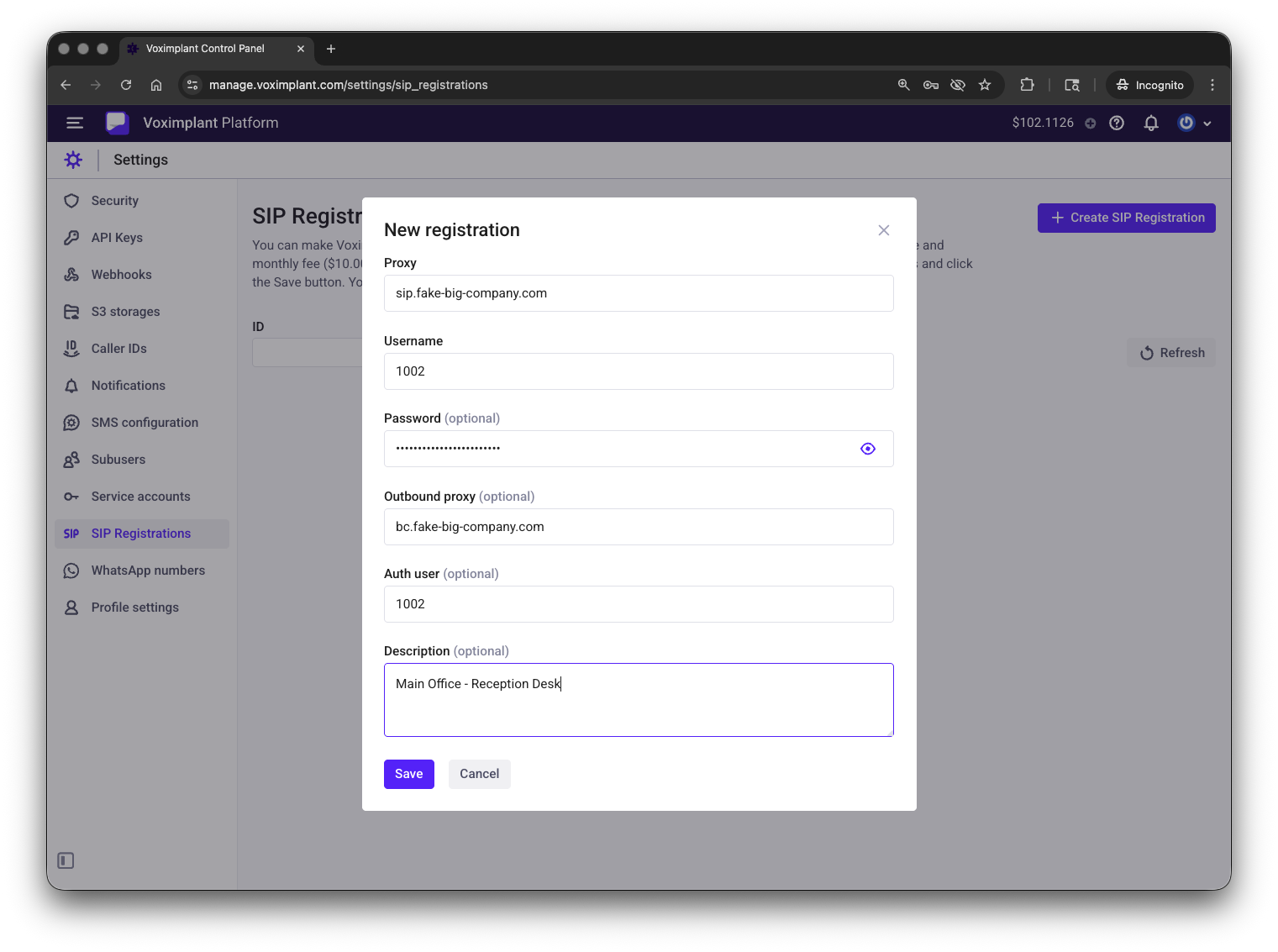
Attach the SIP registration to your application. This is available from the `SIP Registrations` tab in the left pane.
When you do this, you will need to select the desired routing rule that handles calls to this registration.
Note that you do not need to configure the rule pattern in this case — the rule works for all the calls to this SIP registration.
Open `SIP Registrations` in Control Panel and verify the registration shows as connected/active before testing calls.
You should see s status of `Success` if the registration is active.
You can also verify status via Management API:
[GetSipRegistrations](https://voximplant.com/docs/references/httpapi/sipregistration#getsipregistrations).
Now you can place calls to and from this registration just like you would with any other phone / device connected to your SIP infrastructure.
Please note that you pay for SIP registrations monthly according to our price list. So if you create a SIP registration and delete it immediately, your account is charged for the SIP registration monthly fee.
When a SIP registration status changes from Successful to Failed and vice versa, you get an email notification to the contact email addresses and the HTTP callback invokes.
You can learn more about HTTP callbacks in [this article](https://voximplant.com/docs/guides/management-api/callbacks).
# Placing outbound SIP calls from Voximplant
Use `VoxEngine.callSIP()` for outbound SIP dialing.
Before placing outbound calls through a SIP registration, confirm the registration is active in Control Panel (`SIP Registrations`) or via
[GetSipRegistrations](https://voximplant.com/docs/references/httpapi/sipregistration#getsipregistrations).
To place an outbound SIP call through a registration, pass `regId` in the third argument of `VoxEngine.callSIP(...)`.
You can find `regId` in the SIP registration list in Control Panel, or in
[GetSipRegistrations](https://voximplant.com/docs/references/httpapi/sipregistration#getsipregistrations) and
[CreateSipRegistration](https://voximplant.com/docs/references/httpapi/sipregistration#createsipregistration) responses.
Usually you only need to specify the destination username/number of the called party.
```js title="Outbound SIP via URI"
const call = VoxEngine.callSIP("sip:1001@pbx.example.com", "+15557654321");
```
```js title="Outbound SIP via registration (regId)"
const regId = 1234567; // from SIP Registrations list or HTTP API response
const destination = "1001"; // usually extension/username in your SIP system
const call = VoxEngine.callSIP(`sip:${destination}`, "+15557654321", { regId });
```
For programmable outbound launching, start the routing rule from GUI or call `startScenarios` and pass custom data (for example destination/caller ID) to the scenario.
```json title="Example script_custom_data"
{"callerid":"+15557654321","number":"1001"}
```
SIP Voice AI connector example:
* [Ultravox SIP trunking guide](https://voximplant.com/docs/voice-ai/ultravox/sip)
# More information:
* [VoxEngine Call class](https://voximplant.com/docs/references/voxengine/call)
* [SIP calls and registrations guide](https://voximplant.com/docs/guides/calls/sip)
* [Voximplant SIP server IP allow-list FAQ](https://voximplant.com/help/faq/where-can-i-get-ip-information-about-voximplant-servers)
* [VoxEngine.callSIP](https://voximplant.com/docs/references/voxengine/voxengine/callsip)