> For a complete documentation index, fetch https://docs.voximplant.ai/llms.txt
# iOS: Collecting logs
This article will help you to collect logs from iOS SDK and WebRTC.
## Contents:
* [Collect logs from the Xcode console](#collect-logs-from-the-xcode-console)
* [Write logs to a file](#write-logs-to-a-file)
* [Get a log file from a device](#get-a-log-file-from-a-device)
* [Redirect iOS SDK logs to the Mac Console](#redirect-ios-sdk-logs-to-the-mac-console)
## Collect logs from the Xcode console
iOS SDK prints the logs to the Xcode console in debug mode without any additional setup.
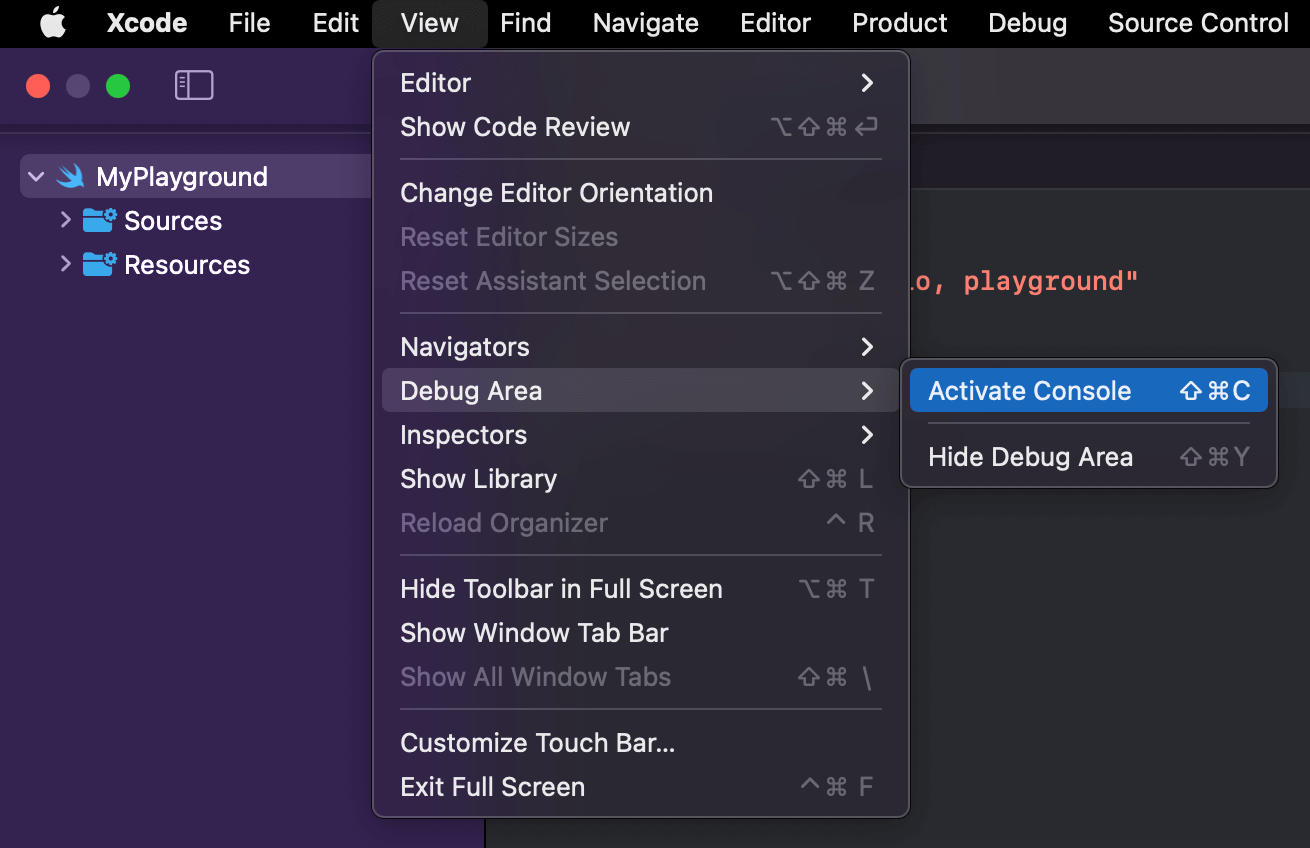
1. Open **Console** from the menu bar by selecting **View** → **Debug Area** → **Activate Console**.
2. Add a `#VI` tag in the console filter.
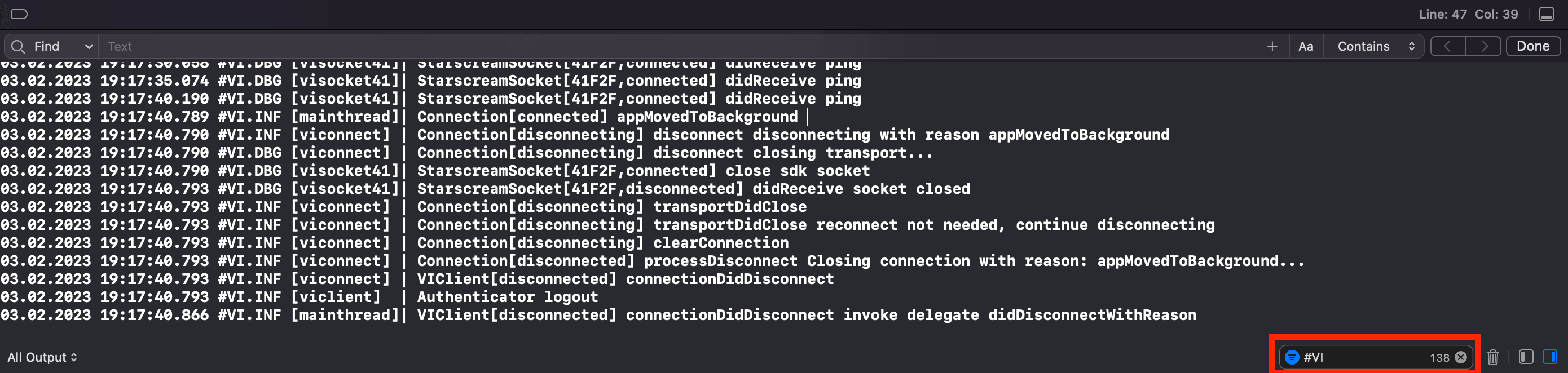
3. Once the collection is complete, select everything with **⌘ + A**, paste it into any text editor, and save the file. The recommended file extensions are “.log” and “.txt”.
## Write logs to a file
There are two ways of writing logs to a file: via VILogDelegate or CocoaLumberjackSwift.
### Collect logs to a file via VILogDelegate
Voximplant iOS SDK provides the [VILogDelegate](https://voximplant.com/docs/references/iossdk/client/vilogdelegate) protocol to collect the SDK log messages and save them in any convenient place, for example into a file.
[VILogDelegate](https://voximplant.com/docs/references/iossdk/client/vilogdelegate) protocol allows the applications to implement a log handler method that provides the following information:
* The log message level represented by [VILogSeverity](https://voximplant.com/docs/references/iossdk/client/vilogseverity) enum
* Log message in String format
It is recommended to add a timestamp to each log message before writing it to a file.
```swift title="Sample FileLogger"
import VoxImplantSDK
import Foundation
final class FileLogger: NSObject {
static var shared: FileLogger = FileLogger()
private let dateFormatter = DateFormatter()
private var logFilePath: URL? {
if let documentsFolder = FileManager.default.urls(for: .documentDirectory, in: .userDomainMask).first {
return documentsFolder.appendingPathComponent("VoxImplantSDK.log")
} else {
print("Documents folder not found, skipping")
return nil
}
}
private override init() {
super.init()
dateFormatter.dateFormat = "dd.MM.yyyy HH:mm:ss:SSS"
// (2) Invoke VIClient.setLogDelegate API to handle Voximplant SDK log messages.
VIClient.setLogDelegate(self)
}
private func writeLogToFile(_ text: String) {
guard let logFile = logFilePath else {
print("File path does not exist")
return
}
if FileManager.default.fileExists(atPath: logFile.path),
let fileHandle = try? FileHandle(forWritingTo: logFile) {
let string = "\(text)\n"
let data = Data(string.utf8)
fileHandle.seekToEndOfFile()
fileHandle.write(data)
fileHandle.closeFile()
} else {
do {
try text.write(to: logFile, atomically: false, encoding: .utf8)
}
catch {
print("Error: \(error.localizedDescription)")
}
}
}
private func logFormatter(message: String) -> String {
let now = Date()
let dateString = dateFormatter.string(from: now)
return dateString + " " + message
}
}
// (1) Conform VILogDelegate protocol
extension FileLogger: VILogDelegate {
func didReceiveLogMessage(_ message: String, severity: VILogSeverity) {
let dateAndMessage = logFormatter(message: message)
// (3) Write a log message to a file.
writeLogToFile(dateAndMessage)
}
}
```
### Collect logs to a file via CocoaLumberjack
You can also use ready-made logging solutions like [CocoaLumberjack](https://github.com/CocoaLumberjack/CocoaLumberjack). CocoaLumberjack provides additional capabilities for log setup such as the maximum log file size, and cleanup interval.
CocoaLumberjackSwift should be installed first according to its official documentation
```swift title="Sample FileLogger with CocoaLumberjack"
// import CocoaLumberjack // if the dependency is installed via CocoaPods
import CocoaLumberjackSwift // if the dependency is installed via SPM
import VoxImplantSDK
import Foundation
final class FileLogger: NSObject {
static var shared: FileLogger = FileLogger()
private let voxClientFileLogger = DDLog()
private var ddLogLevel: DDLogLevel { .info }
private var logFilePath: URL? {
if let documentsFolder = FileManager.default.urls(for: .documentDirectory, in: .userDomainMask).first {
return documentsFolder.appendingPathComponent("VoxImplantSDK.log")
} else {
print("Documents folder not found, skipping")
return nil
}
}
private override init() {
super.init()
configure()
// (2) Invoke VIClient.setLogDelegate API to handle Voximplant SDK log messages.
VIClient.setLogDelegate(self)
}
private func configure() {
guard let logFilePath = logFilePath else { return }
let logFileManager = DDLogFileManagerDefault(logsDirectory: logFilePath.path)
logFileManager.maximumNumberOfLogFiles = 1
let fileLogger = DDFileLogger(logFileManager: logFileManager)
/// Cleanup interval 24 hours
fileLogger.rollingFrequency = TimeInterval(60 * 60 * 24)
/// Maximum log file size 10MB
fileLogger.maximumFileSize = 1024 * 1024 * 10
fileLogger.logFormatter = LogFormatter()
voxClientFileLogger.add(fileLogger, with: ddLogLevel) // Vox Client Log to file
}
}
// (1) Conform VILogDelegate protocol
extension FileLogger: VILogDelegate {
func didReceiveLogMessage(_ message: String, severity: VILogSeverity) {
// (3) Write a log message to a file.
switch severity {
case .debug:
DDLogDebug(message, ddlog: voxClientFileLogger)
case .info:
DDLogInfo(message, ddlog: voxClientFileLogger)
case .warning:
DDLogWarn(message, ddlog: voxClientFileLogger)
case .error:
DDLogError(message, ddlog: voxClientFileLogger)
case .verbose:
DDLogDebug(message, ddlog: voxClientFileLogger)
default:
DDLogDebug(message, ddlog: voxClientFileLogger)
}
}
}
final class LogFormatter: NSObject, DDLogFormatter {
private let dateFormatter = DateFormatter()
override init() {
dateFormatter.dateFormat = "dd.MM.yyyy HH:mm:ss:SSS"
super.init()
}
func format(message logMessage: DDLogMessage) -> String? {
let dateAndTime = dateFormatter.string(from: logMessage.timestamp)
return dateAndTime + " " + logMessage.message
}
}
```
## Get a log file from a device
If the application is built in the debug mode, it is possible to get a log file from the device using Xcode.
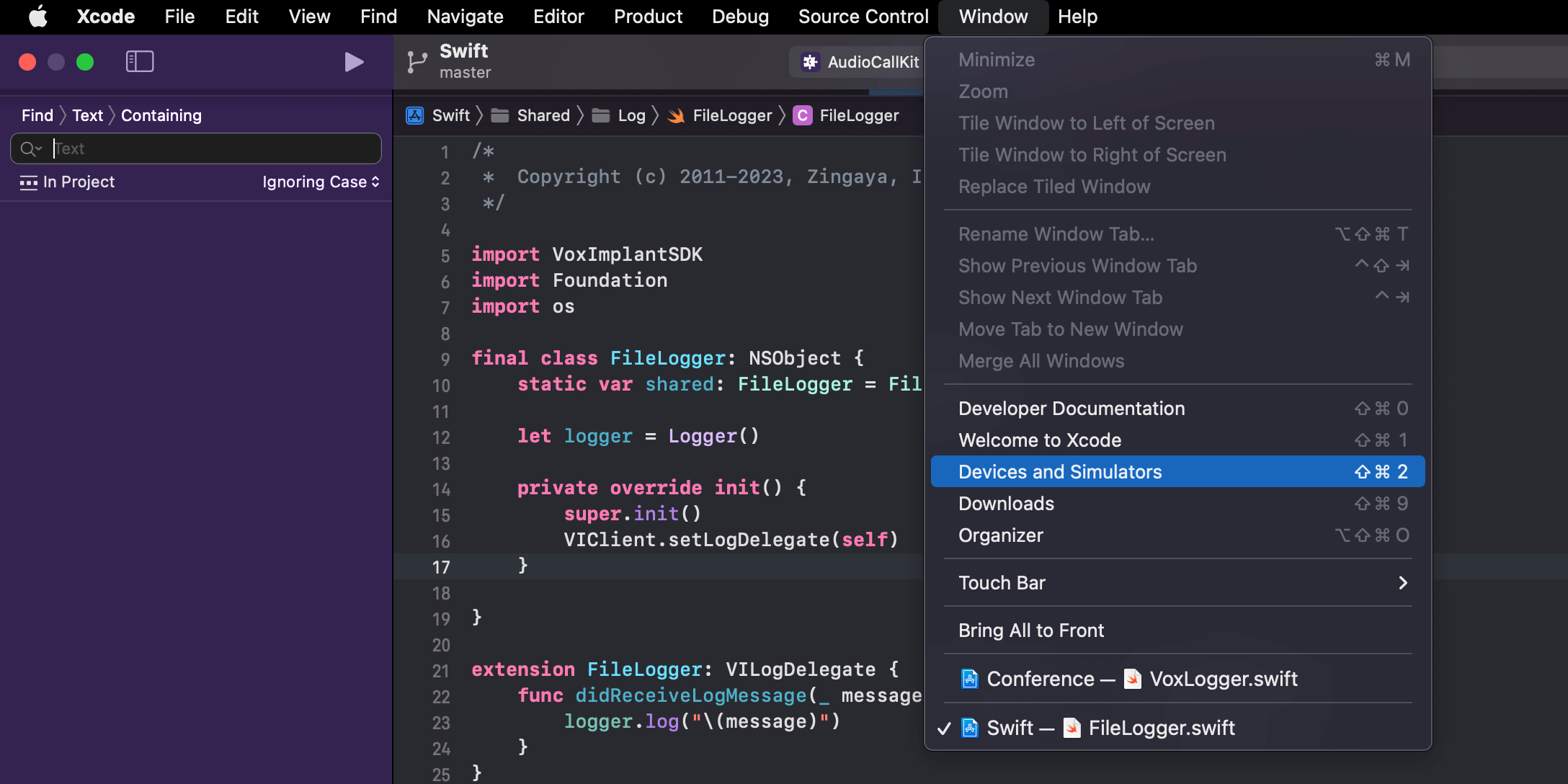
1. Open **Devices and Simulators** from the menu bar by selecting **Window** → **Devices and Simulators**
2. Select the device and the application, then download the container.
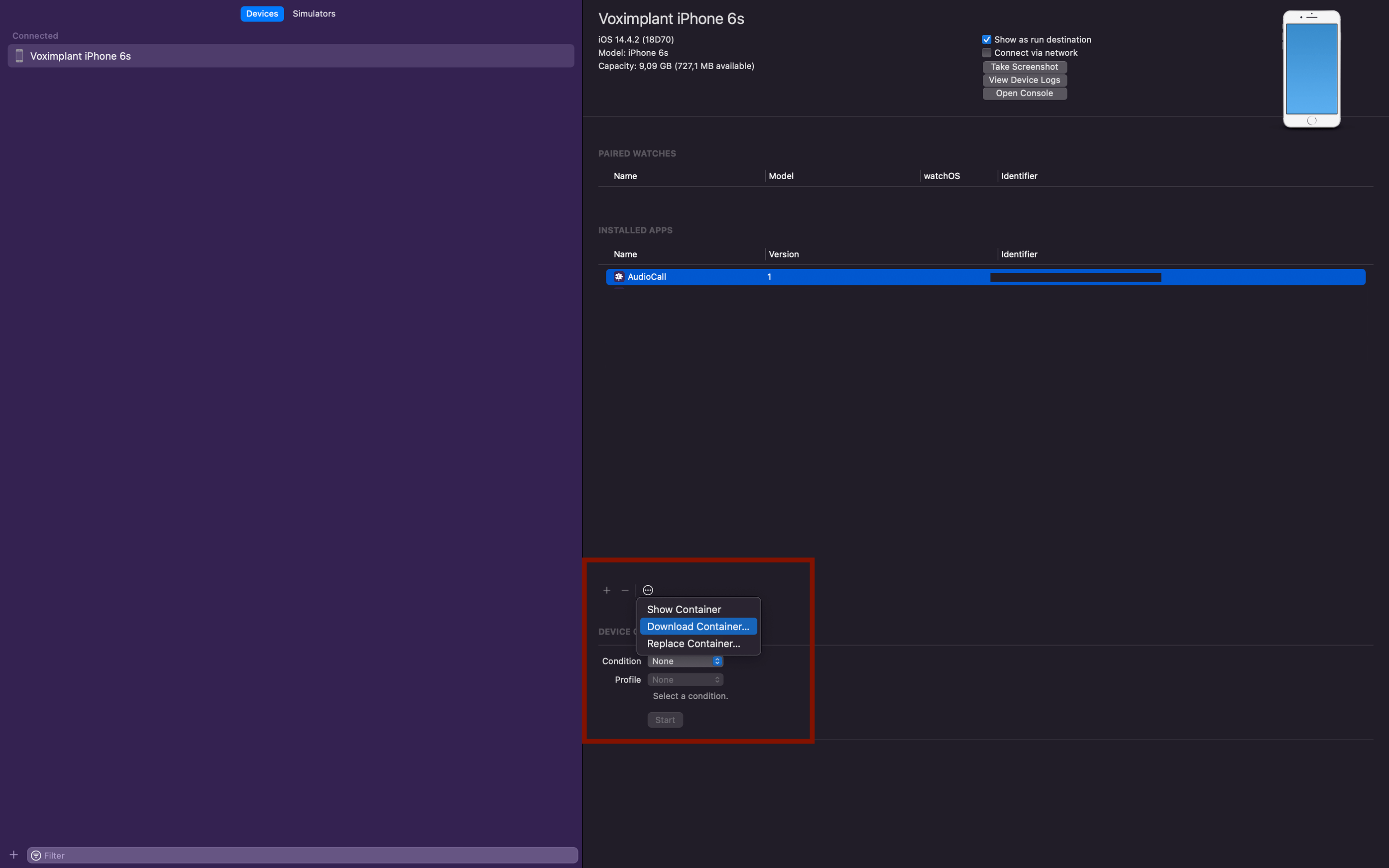
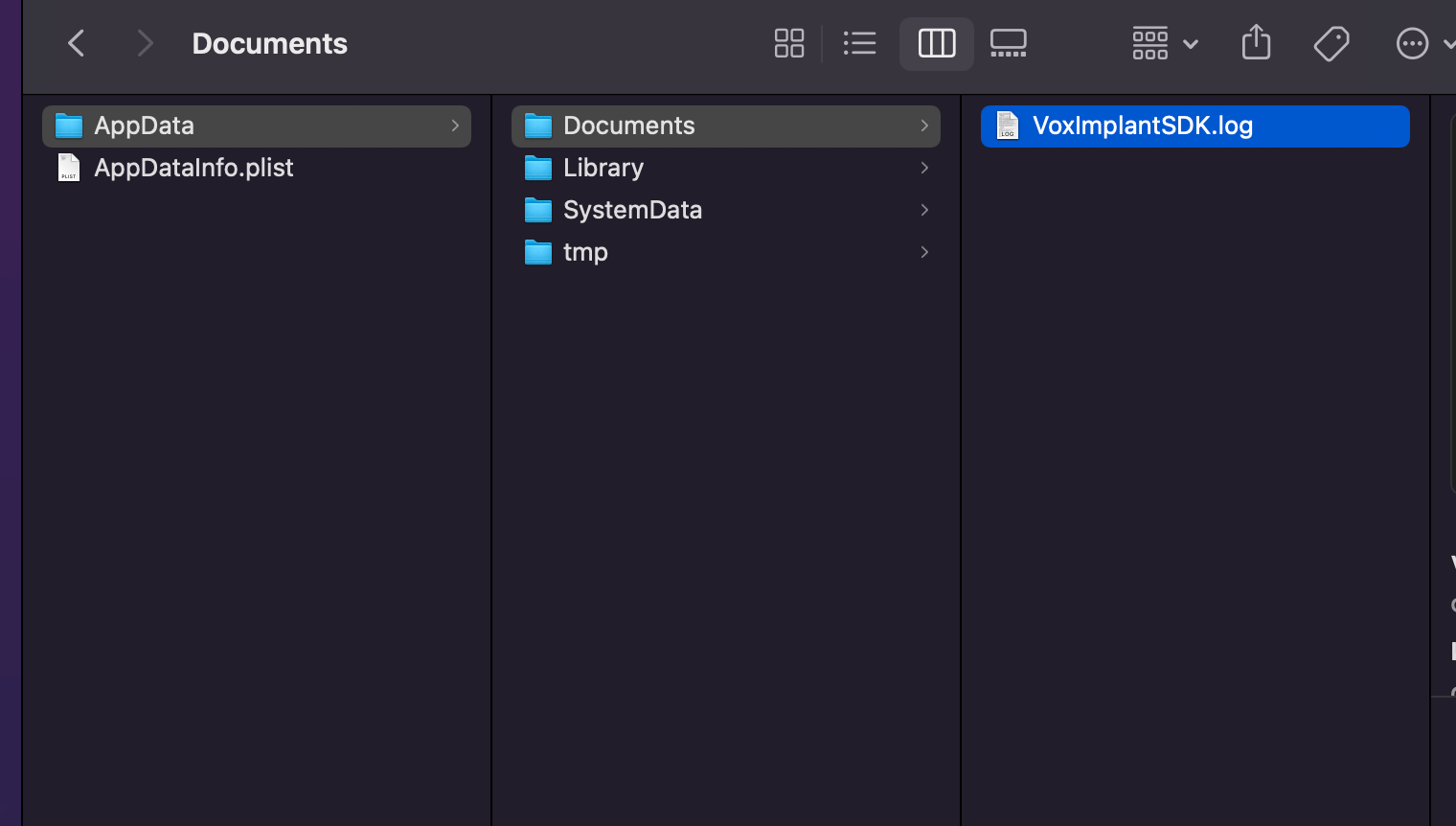
3. Right-click on the downloaded file with .xcappdata extension and click **Show package contents**. The log file is located in the **AppData** → **Documents** path.
## Redirect iOS SDK logs to the Mac Console
It is also possible to redirect iOS SDK logs to the Mac Console.
This approach allows developers to collect the logs as well as see them in real-time.
Redirecting the logs in the production builds can cause security incidents as the logs may contain sensitive information such as Voximplant account name, IP address, text messages received from VoxEngine scenario.
```swift title="Sample"
import VoxImplantSDK
import Foundation
// (1) Import os
import os
@available(iOS 14.0, *)
final class ConsoleLogger: NSObject {
static var shared: ConsoleLogger = ConsoleLogger()
let logger = Logger()
private override init() {
super.init()
// (3) Invoke VIClient.setLogDelegate API to handle Voximplant SDK log messages.
VIClient.setLogDelegate(self)
}
}
// (2) Conform VILogDelegate protocol
@available(iOS 14.0, *)
extension ConsoleLogger: VILogDelegate {
func didReceiveLogMessage(_ message: String, severity: VILogSeverity) {
// (4) Redirect the log message
logger.log("\(message)")
}
}
```