> For a complete documentation index, fetch https://docs.voximplant.ai/llms.txt
# Screen sharing
Voximplant SDKs allow developers to share their device screen to a call or conference.
## How to share the screen in Web SDK
Screen sharing works in all desktop web browsers, such as Chrome, Edge, Safari, and Firefox.
Mobile browsers do not support screen sharing.
To share the screen **during an active call** started via [call()](https://voximplant.com/docs/references/websdk/voximplant/client#call) method, use the [shareScreen()](https://voximplant.com/docs/references/websdk/voximplant/call#sharescreen) method during an active call. This method replaces the user video with screen sharing. Please note that you cannot share both the user video and device screen simultaneously.
```javascript title="shareScreen() method example"
// during an active call
call
.shareScreen()
.then(() => {
// screen sharing started successfully
})
.catch(() => {
// screen sharing did not start, catch errors
// probably the user declined the sharing prompt
});
```
Please note, that most browsers do not support video autoplay. To avoid any errors, implement an interactive element that starts video playback on the web video element. [Read this article](https://voximplant.com/docs/guides/calls/sdk-errors) for more information.
To stop screen sharing, use the [stopSharingScreen()](https://voximplant.com/docs/references/websdk/voximplant/call#stopsharingscreen) method. You can also stop screen sharing via the browser's native button to stop screen sharing.
To share the screen **during a conference**, you can use the [shareScreen()](https://voximplant.com/docs/references/websdk/voximplant/call#sharescreen) method as well to replace the user video with screen sharing. If you need to share both user video and device screen, you can use the [joinAsSharing()](https://voximplant.com/docs/references/websdk/voximplant/client#joinassharing) method to add your screen sharing as a separate conference participant.
The [joinAsSharing()](https://voximplant.com/docs/references/websdk/voximplant/client#joinassharing) method accepts three parameters:
* **num**: conference number
* **sendAudio**: optional boolean parameter that specifies whether to send audio track or not
* **extraHeaders**: optional X-headers to pass into the call's INVITE message
```javascript title="joinAsSharing() method example"
const sharingCall = client.joinAsSharing('my_conf');
```
To stop screen sharing that is connected as a separate conference participant, use the [SharingCall.hangup()](https://voximplant.com/docs/references/websdk/voximplant/sharingcall#hangup) method.
To track if a user changed the video to screen sharing or vice versa, subscribe to the [MediaRendererUpdated](https://voximplant.com/docs/references/websdk/voximplant/hardware/hardwareevents#mediarendererupdated) event. The result of this event has the **type** parameter, which specifies the video source.
```javascript title="MediaRendererUpdated event example"
client.addEventListener(VoxImplant.Hardware.HardwareEvents.MediaRendererUpdated, (res) => {
if(res.type === 'sharing') {
// the video source is changed to screen sharing
}
})
```
## How to share the screen in Android SDK
Screen sharing for Android is based on Android's [MediaProjection API](https://developer.android.com/reference/android/media/projection/MediaProjection). **The minimum required Android version is 21.**
Before you start screen sharing, request the user permission to share the screen via the [MediaProjectionManager.createScreenCaptureIntent](https://developer.android.com/reference/android/media/projection/MediaProjectionManager#createScreenCaptureIntent%28%29) method, then handle the result via the startActivityForResult method.
Screen sharing can start only if a user gives permission for this action.
```java title="Android"
// create an intent and request the user permission
MediaProjectionManager mediaProjectionManager = (MediaProjectionManager)
getContext().getSystemService(MEDIA_PROJECTION_SERVICE);
Intent screenSharingIntent = mediaProjectionManager.createScreenCaptureIntent();
startActivityForResult(screenSharingIntent, 1);
// handle the result
@Override
public void onActivityResult(int requestCode, int resultCode, Intent data) {
if (requestCode == 1 && resultCode == Activity.RESULT_OK) {
// user granted the permission, ready to start the screen sharing
}
}
```
```kotlin title="Request user permission"
// create intent and request the user permission
val mediaProjectionManager =
getSystemService(Context.MEDIA_PROJECTION_SERVICE) as MediaProjectionManager
val screenSharingIntenet = mediaProjectionManager.createScreenCaptureIntent()
startActivityForResult(
screenSharingIntent,
1
)
// handle the result
override fun onActivityResult(requestCode: Int, resultCode: Int, data: Intent?) {
if (requestCode == 1 && resultCode == Activity.RESULT_OK) {
// user granted the permission, ready to start the screen sharing
}
}
```
To start screen sharing, use the [IstartScreenSharing](https://voximplant.com/docs/references/androidsdk/call/icall#startscreensharing) method and pass to it the Intent.
Use the **ICallCompletionHandler** event to check if the screen sharing started successfully. In case of success, the [ICallCompletionHandler.onComplete](https://voximplant.com/docs/references/androidsdk/call/icallcompletionhandler#oncomplete) event is triggered, otherwise, the [ICallCompletionHandler.onFailure](https://voximplant.com/docs/references/androidsdk/call/icallcompletionhandler#onfailure) event is triggered with the error code. You can see the error code list in the [CallError enum](https://voximplant.com/docs/references/androidsdk/call/callerror).
```java title="Android"
call.startScreenSharing(screenSharingIntent, new ICallCompletionHandler() {
@Override
public void onComplete() {
// screen sharing is successfully started
}
@Override
public void onFailure(CallException exception) {
// failed to start screen sharing
}
});
```
```kotlin title="startScreenSharing"
call?.startScreenSharing(screenSharingIntent, object : ICallCompletionHandler {
override fun onComplete() {
// screen sharing is started successfully
}
override fun onFailure(e: CallException) {
// failed to start screen sharing
}
})
```
To stop screen sharing, change the [sendVideo](https://voximplant.com/docs/references/androidsdk/call/icall#sendvideo) method's first argument. Set it to **true** to stop screen sharing and start sending the user video. Set it to **false** to stop screen sharing and send nothing to the call.
```java title="Android"
boolean shouldSendVideo;
...
call.sendVideo(shouldSendVideo, new ICallCompletionHandler() {
@Override
public void onComplete() {
// screen sharing is successfully stopped
// if sendVideo is set to true, the SDK sends the video from the camera
// if sendVideo is set to false, the SDK stops sending the video
}
@Override
public void onFailure(CallException exception) {
// an error occurred, check CallError from the exception for more details
}
});
```
```kotlin title="sendVideo"
val shouldSendVideo: Boolean
...
call?.sendVideo(shouldSendVideo, object: ICallCompletionHandler {
override fun onComplete() {
// screen sharing is successfully stopped
// if shouldSendVideo is true, the SDK sends the video from camera now
// if shouldSendVideo is false, the SDK has stopped sending the video
}
override fun onFailure(e: CallException) {
// an error occurred, check CallError from the exception for more details
}
})
```
## How to share the screen in iOS SDK
There are two ways to share your screen in iOS:
* **Application screen sharing**: Easy to implement, but you can share only the screen of your application. *For example, if you build a banking application, and you need to share the client's screen for support purposes.*
* **Broadcast screen sharing**: You can share the screen of your device including home screen, panels, and any other 3rd-party applications, but you need to install the Broadcast Upload App/Setup UI App extensions.
**The minimum required iOS version to share the screen is 11.**
### Application screen sharing
To share the application screen, use the [VICall.startInAppScreenSharing](https://voximplant.com/docs/references/iossdk/call/vicall#startinappscreensharing) method. After the user accepts the standard iOS security prompt, the screen sharing starts. The user's decision **is not** saved between application launches.
```swift title="iOS (Swift)"
let call: VICall
call.startInAppScreenSharing { [weak self] error in
if let error = error {
// failed to start screen sharing
return
}
// screen sharing is successfully started
}
```
```objc title="startInAppScreenSharing"
VICall *call;
[call startInAppScreenSharing:^(NSError * _Nullable error) {
if (error) {
// failed to start screen sharing
} else {
// screen sharing is started successfully
}
}];
```
To stop sharing your application screen, use the [VICall.setSendVideo](https://voximplant.com/docs/references/iossdk/call/vicall#setsendvideocompletion) method. Set it to **true** to stop screen sharing and start sending user video. Set it to **false** to stop screen sharing and send nothing to the call.
### Broadcast screen sharing
iOS Broadcast screen sharing allows users to share the screen of your device including home screen, panels, and any other 3rd-party applications, but you need to install the Broadcast Upload App/Setup UI App extensions.
iOS Broadcast screen sharing works only in [conferences](https://voximplant.com/docs/guides/conferences), due to the technical implementation of obtaining frames in iOS (in a separate operating system process).
To implement Broadcast screen sharing you need to install a separate [application extension](https://developer.apple.com/library/archive/documentation/General/Conceptual/ExtensibilityPG/ExtensionOverview.html) to your Xcode project.
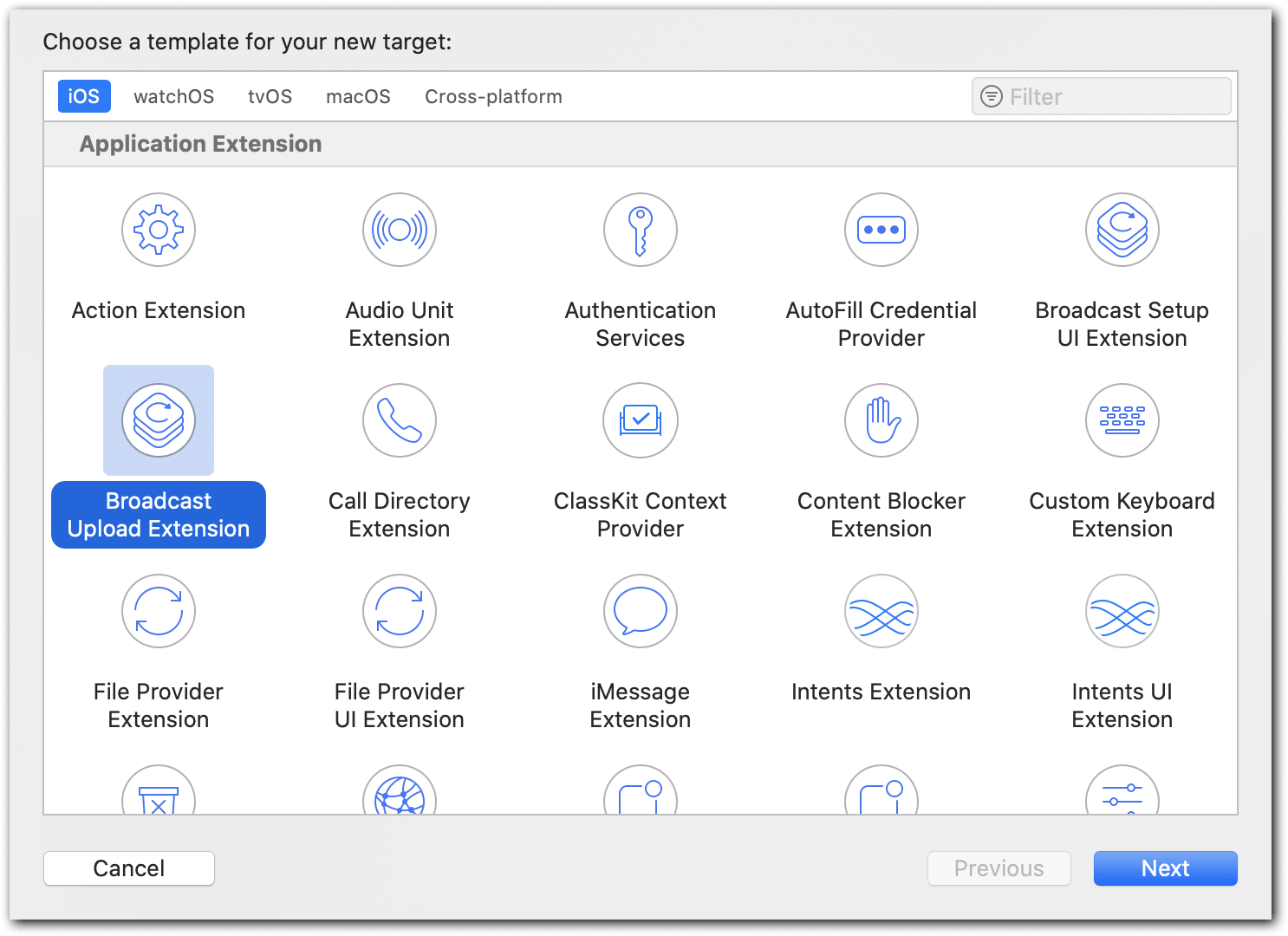
Open your Xcode project and go File → New → Target → Broadcast Upload Extension:
Click **Next**, enter a name for a new target, and unselect the **Include UI Extension** checkbox as you do not need it.
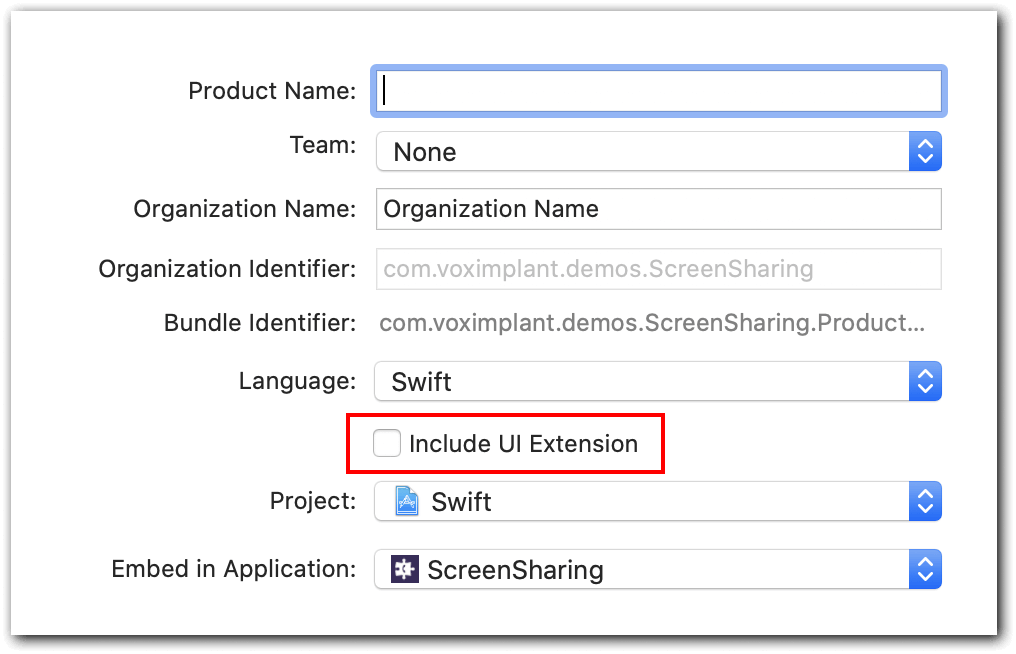
After **Broadcast Upload Extension** adds to your Xcode project, you can launch it via two ways:
* **Control panel**, available since iOS 11. Add a screen recording button in the Settings → Control center → Customize controls → Screen recording. Then open your control panel and choose the Screen recording feature, then select **BroadcastUploadExtension**.
* **Button in your application**, available since iOS 12. Add an [RPSystemBroadcastPickerView](https://developer.apple.com/documentation/replaykit/rpsystembroadcastpickerview) button to your application to launch screen sharing.
After the user gives permission for broadcasting, the **application extension** process launches, and the control is switched to the [RPBroadcastSampleHandler broadcastStartedWithSetupInfo](https://developer.apple.com/documentation/replaykit/rpbroadcastsamplehandler/2143170-broadcaststartedwithsetupinfo?language=objc) method.
Next, your application needs to connect to the Voximplant cloud and authorize the user. The [token-based authorizaion is preferred](https://voximplant.com/docs/references/iossdk/client/viclient#loginwithusertokensuccessfailure).
You can pass the credentials and the **roomid** from your app to Voximplant through the app extension, e.g., **Keychain** or **UserDefaults**. Bear in mind that this requires setting up the [App Group](https://developer.apple.com/library/archive/documentation/General/Conceptual/ExtensibilityPG/ExtensionScenarios.html).
```swift title="iOS (Swift)"
// app extension code:
class SampleHandler: RPBroadcastSampleHandler {
let viclient: VIClient
...
override func broadcastStarted(withSetupInfo setupInfo: [String : NSObject]?) {
viclient.connect()
...
}
...
// MARK: VIClientSessionDelegate
func clientSessionDidConnect(_ viclient: VIClient) {
viclient.login(withUser: username; token: accesstoken, success: {
(displayName: String, tokens: VIAuthParams) in
// successfully logged in
}, failure: { (error: Error) in
// error handling
}
}
...
}
```
```objc title="clientSessionDidConnect"
// app extension code:
@implementation RPBroadcastSampleHandler
...
VIClient *viclient;
...
-(void)broadcastStartedWithSetupInfo:(NSDictionary *)setupInfo {
[viclient connect];
...
}
...
#pragma mark - VIClientSessionDelegate
-(void)clientSessionDidConnect:(VIClient *)viclient {
[viclient loginWithUser:username
token:accesstoken
success: ^(NSString * _Nonnull userDisplayName,
VIAuthParams * _Nonnull authParams) {
// successfully logged in
} failure: ^(NSError * _Nonnull error) {
// error handling
}
}
...
@end
```
Now the application should create a new call, connect it to the conference, and start sending frames to the conference. The screen frames are processed via the [VICustomVideoSource](https://voximplant.com/docs/references/iossdk/hardware/vicustomvideosource) class.
Due to RAM restrictions for app extensions (50 Mb RAM limit):
* Receiving of [voice](https://voximplant.com/docs/references/iossdk/call/vicallsettings#receiveaudio) and [video](https://voximplant.com/docs/references/iossdk/call/vicallsettings#videoflags) should be disabled for screen sharing call
* [Audio sending](https://voximplant.com/docs/references/iossdk/call/vicall#sendaudio) should be disabled
* The codec should be H.264
```swift title="iOS (Swift)"
// app extension code:
// create a custom video source instance
let screenVideoSource = VICustomVideoSource(screenCastFormat: ())
// create and start call
let roomid: String
let settings = VICallSettings()
// It is important to use only .H264 encoding in appex.
settings.preferredVideoCodec = .H264
settings.receiveAudio = false
settings.videoFlags = VIVideoFlags.videoFlags(receiveVideo: false, sendVideo: true)
if let screenSharingCall:VICall = viclient.callConference(roomid, settings: settings) {
// change the custom camera instance
screenSharingCall.videoSource = screenVideoSource
screenSharingCall.sendAudio = false
screenSharingCall.start()
}
```
```objc title="Call settings"
// app extension code:
// create a custom video source instance
VICustomVideoSource *screenVideoSource = [VICustomVideoSource initScreenCastFormat];
// create and start call
NSString *roomid;
VICallSettings *settings = [[VICallSettings alloc] init];
// It is important to use only .H264 encoding in appex.
settings.preferredVideoCodec = VIVideoCodecH264;
settings.receiveAudio = NO;
settings.videoFlags = [VIVideoFlags videoFlagsWithReceiveVideo:NO sendVideo:YES];
VICall *screenSharingCall = nil;
if ((screenSharingCall = [viclient callConference:roomid settings:settings])) {
// change the custom camera instance
screenSharingCall.videoSource = screenVideoSource;
screenSharingCall.sendAudio = NO;
[screenSharingCall start];
}
```
To pass the screen capture to the call, implement a [custom video source](https://voximplant.com/docs/references/iossdk/hardware/vicustomvideosource) via the [initScreenCastFormat](https://voximplant.com/docs/references/iossdk/hardware/vicustomvideosource#initscreencastformat) constructor.
Broadcast extension sends the frames via the [RPBroadcastSampleHandler.processSampleBuffer](https://developer.apple.com/documentation/replaykit/rpbroadcastsamplehandler/2123045-processsamplebuffer) method.
There are three types of the frames: .video, .audioApp, .audioMic. The .video frames should be passed to a custom video source via the [sendVideoFrame:rotation](https://voximplant.com/docs/references/iossdk/hardware/vicustomvideosource#sendvideoframerotation) method. You can obtain the rotation from the resulting frame.
```swift title="iOS (Swift)"
// app extension code
override func processSampleBuffer(_ sampleBuffer: CMSampleBuffer,
with sampleBufferType: RPSampleBufferType) {
if sampleBufferType != .video {
return
}
if let pixelBuffer: CVPixelBuffer = CMSampleBufferGetImageBuffer(sampleBuffer) {
var rotation: VIRotation?
if let uint32rotation = CMGetAttachment(sampleBuffer,
key: RPVideoSampleOrientationKey as CFString,
attachmentModeOut: nil)?.uint32Value
{
switch CGImagePropertyOrientation(rawValue: uint32rotation) {
case .up?, .upMirrored?:
rotation = ._0
case .right?, .rightMirrored?:
rotation = ._270
case .left?, .leftMirrored?:
rotation = ._90
case .down?, .downMirrored?:
rotation = ._180
}
}
self.screenVideoSource.sendVideoFrame(pixelBuffer, rotation:rotation)
}
}
```
```objc title="Received frames processing"
// app extension code
- (void)processSampleBuffer:(CMSampleBufferRef)sampleBuffer
withType:(RPSampleBufferType)sampleBufferType
{
if (sampleBufferType != RPSampleBufferTypeVideo) {
return;
}
CVPixelBufferRef pixelBuffer = CMSampleBufferGetImageBuffer(sampleBuffer);
if (pixelBuffer) {
VIRotation rotation = VIRotation_0;
NSNumber *orientationAttachment = (__bridge NSNumber*)CMGetAttachment(sampleBuffer,
(__bridge CFStringRef)RPVideoSampleOrientationKey , NULL);
if (orientationAttachment) {
switch ((CGImagePropertyOrientation)orientationAttachment.unsignedIntValue) {
case kCGImagePropertyOrientationUp:
case kCGImagePropertyOrientationUpMirrored:
rotation = VIRotation_0;
break;
case kCGImagePropertyOrientationRight:
case kCGImagePropertyOrientationRightMirrored:
rotation = VIRotation_270;
break;
case kCGImagePropertyOrientationLeft:
case kCGImagePropertyOrientationLeftMirrored:
rotation = VIRotation_90;
break;
case kCGImagePropertyOrientationDown:
case kCGImagePropertyOrientationDownMirrored:
rotation = VIRotation_180;
break;
default:
rotation = VIRotation_0;
break;
}
[self.screenVideoSource sendVideoFrame:pixelBuffer rotation:rotation];
}
}
}
```
As you have two separate participants in the conference (the call and the screen sharing), you need to synchronize the statuses of two calls. For example, you have to pass the information about the end of one call to the other, between the processes of the operating system. To do this, you can use the [CFNotifyCenterGetDarwinNotifyCenter](https://developer.apple.com/documentation/corefoundation/1542572-cfnotificationcentergetdarwinnot?language=objc) method.
1. PSystemBroadcastPickerView may not work correctly when you add it to a Storyboard. To fix this, initialize it first: `let _ = RPSystemBroadcastPickerView ()`.
* 2) If you experience the *"EXCRESOURCE RESOURCETYPE\_MEMORY (limit = 50 MB, unused = 0x0)"* error, you probably use the VP8 codec. Switch to the h.264 codec to fix the issue.