***
title: Routing rules
subtitle: Route inbound and outbound traffic to the right scenarios
---------------------
For a complete documentation index, fetch https://docs.voximplant.ai/llms.txt
Routing rules in Voximplant enable developers to launch one or multiple [scenarios](/platform/voxengine/scenarios) and make and receive calls. When a call arrives on the platform, or you make a call through an SDK client, routing rules select the appropriate scenario(s) to execute. Launching a routing rule initiates the execution of all attached scenarios.
In this guide, you will learn how to create routing rules, attach scenarios, set up patterns for incoming calls, and execute routing rules and scenarios.
Without a routing rule you cannot make or receive a call, create a conference, and execute any scenario logic.
## Creating a routing rule
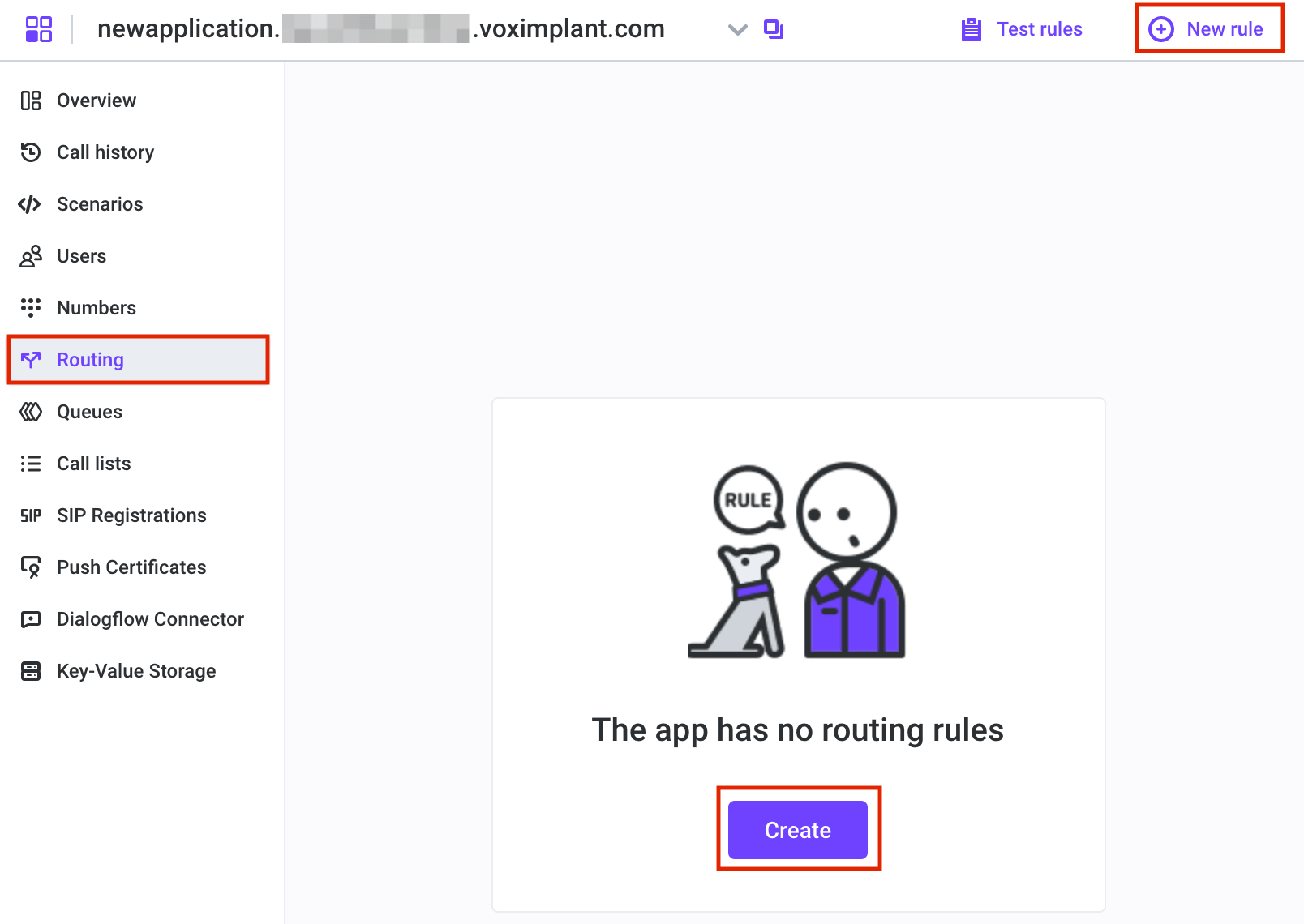
To create a routing rule, navigate to the **Routing** tab in your [application](/platform/voxengine/applications). You can either click **Create** in the center of the screen or **New rule** in the upper right corner:
This opens the **New rule** editor, where you can specify the rule name, properties, and attach one or more scenarios:
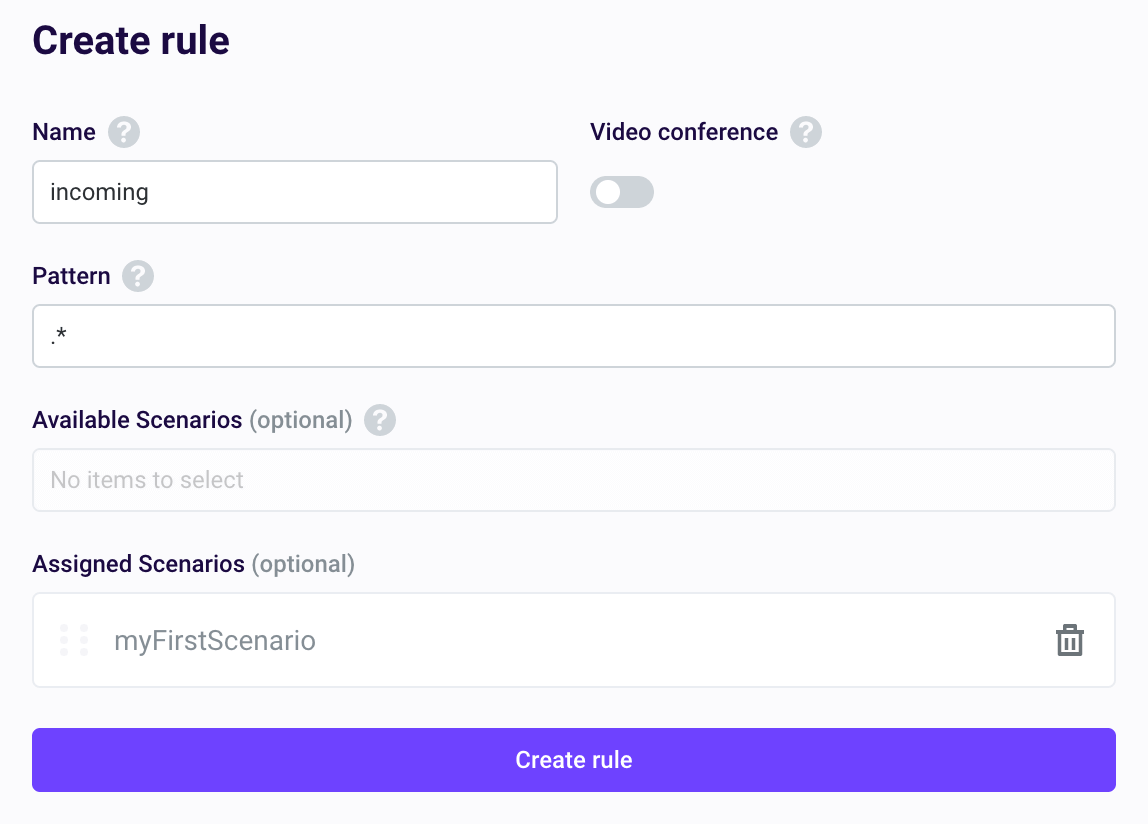
If you intend to use the scenario for video conferencing, enable the **Video conference** switch. Without this parameter, all video conferences fail with an error.
With the **Video conference** switch enabled, all the calls made via SDKs or softphones are billed as video conferences.
The **Pattern** field checks if the call’s destination (the dialed number or username specified in the `e.destination` property of the incoming call) matches any rule’s pattern. If the call’s destination aligns with the pattern, the attached scenario(s) are executed. If the call’s destination doesn’t match the pattern, the attached scenario(s) remain inactive, and the call proceeds to the next routing rule.
The application systematically evaluates the routing rules from top to bottom, with higher-priority rules taking precedence. When the call’s destination matches one of the rules, the rule is executed, and the application disregards any subsequent rules, ensuring that only one rule is executed at a time.
If the destination phone number meets several rules' patterns, only **the first rule** executes.
The **Pattern** field employs regular expressions to create masks for phone numbers or usernames. Common expressions include:
* `.*` means any quantity of any symbols, so all the numbers or usernames match the rule.
* `+?[1-9]\d{1,14}` matches any phone number
* `123.+` matches 1234, 12356, etc., and so on.
For more information on building regular expressions, refer to [Wikipedia](https://en.wikipedia.org/wiki/Regular_expression).
The **Available scenarios** dropdown list enables you to attach one or more scenarios to execute when the rule is triggered.
You can attach **multiple scenarios** to a single rule. In this scenario, the rule executes all the attached scenarios sequentially within a single context, promoting code reuse. This allows you to encapsulate all the functions within a scenario and utilize them in another scenario.
You can view all the attached scenarios in the **Assigned scenarios** field.
After specifying all the settings, click the **Create rule** button to create a rule.
## Checking a routing rule
To verify if a specific phone number or username aligns with any rule’s pattern, navigate to the **Testing tools** section in the top right corner and select **Rule checker**.
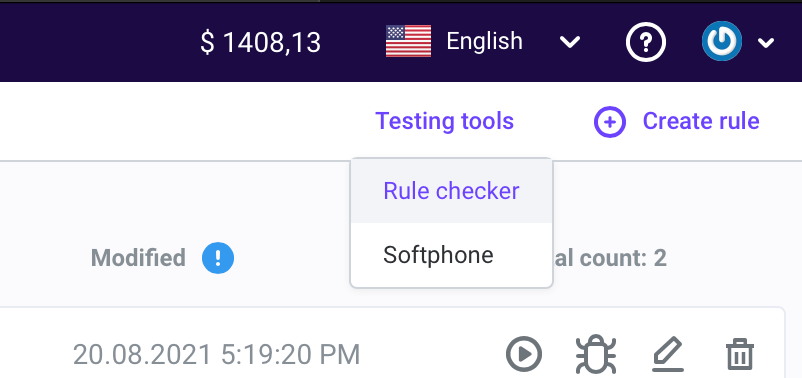
Enter a phone number or username and click **Test**. If the entered data matches any rule, the corresponding rule and its pattern appear below.
Furthermore, you can utilize the integrated **Softphone** to initiate calls to your applications. To access the Softphone, click **Testing tools** in the top right corner and select **Softphone**. To make calls through the Softphone, you need to authorize with the [username and password](/platform/voxengine/users).
## Launching a routing rule
There are several methods for initiating a scenario.
* An incoming call to the platform. If the call’s destination aligns with any rule’s pattern, the corresponding scenario(s) are triggered, and the call proceeds according to the selected scenario.
* An outgoing call from an SDK also generates an incoming call to the platform ([a call leg](/platform/voxengine/calls-and-sessions)). If the destination property of the SDK’s call method matches any rule’s pattern, the corresponding scenario(s) are triggered.
* Management API methods: Use the [StartScenarios](https://voximplant.com/docs/references/httpapi/scenarios#startscenarios) to launch a common scenario, such as audio/video calls or a voice conference; or the [StartConference](https://voximplant.com/docs/references/httpapi/scenarios#startconference) to launch a video conference.
* Manual launch from the control panel: In your [application](/platform/voxengine/applications), navigate to the **Routing** tab, select the appropriate routing rule, and click the **Run** button.
## Frequently asked questions
No. Routing rules are necessary to execute incoming and outgoing scenarios.
Yes. If you attach more than one scenario to a routing rule, they execute in one context, allowing code reuse. This allows developers to write all the functions in one scenario, and use them in another scenario.
No. The patterns work for incoming calls only. For outgoing calls, it is enough to create a rule and attach a scenario.
Yes, patterns also work for SIP usernames. You can create a special prefix or format for SIP usernames and route them to a specific scenario.
The destination number. The rule does not check the matching of your caller ID.
Only the first rule will be executed. The application checks the number against all the rules from top to bottom, and when a suitable rule is found, it stops checking the number.
All attempts to start a video conference with this rule will fail with an error.
The voice calls will work without errors, but they will be billed as video conferences.
If you start a scenario via Management API, pass the data to the `script_custom_data` parameter. If you start the scenario manually via the control panel, pass the data to the "Custom data" window.
You can create a rule for incoming calls with the `.*` pattern (accepts all calls) and place it above the rule for outgoing calls. As the incoming calls rule will intercept all the calls, you can launch the rules below the incoming calls rule only manually, for example with Management API.
Reorder them. The highest rule has the highest priority.