For AI agents: a documentation index is available at the root level at /llms.txt and /llms-full.txt. Append /llms.txt to any URL for a page-level index, or .md for the markdown version of any page.
Platform docsVideosCommunitySign up
CapabilitiesGetting startedVoice AI OrchestrationVoxEngine PlatformAPI ReferenceFAQ
  • Voice AI on Voximplant
    • Getting started
    • VoxEngine Overview
    • LLM & Speech Engines
    • Telephony Networks
    • Guide Usage
  • Configure Voximplant
    • Configure Voximplant
    • Create an account
    • Create an application
    • Create a scenario
    • Setup routing
    • Application Storage
  • Network options
    • Phone Numbers & PSTN
    • SIP
    • WhatsApp
    • Web & Mobile
  • Inbound vs. Outbound calling
    • Inbound calls
    • Outbound calls
  • What's next?
    • Enhance and deploy
    • Telephony and Voice AI
    • Build and Deploy
LogoLogo
Platform docsVideosCommunitySign up
On this page
  • Overview
  • Buy a number
  • Attach the number to your application
  • Outbound specifics
  • More information:
Network options

Phone Numbers & PSTN

Use PSTN numbers for inbound entry points and outbound caller ID
||View as Markdown|
Was this page helpful?
Edit this page
Previous

Initial Voximplant Setup

Next

SIP

Built with

For the complete documentation index, see llms.txt.

Overview

To make and receive calls to public mobile and landline numbers, attach a phone number to your Voximplant application. For inbound calls, this number is your entry point. For outbound PSTN calls, this number is your caller ID.

Buy a number
1

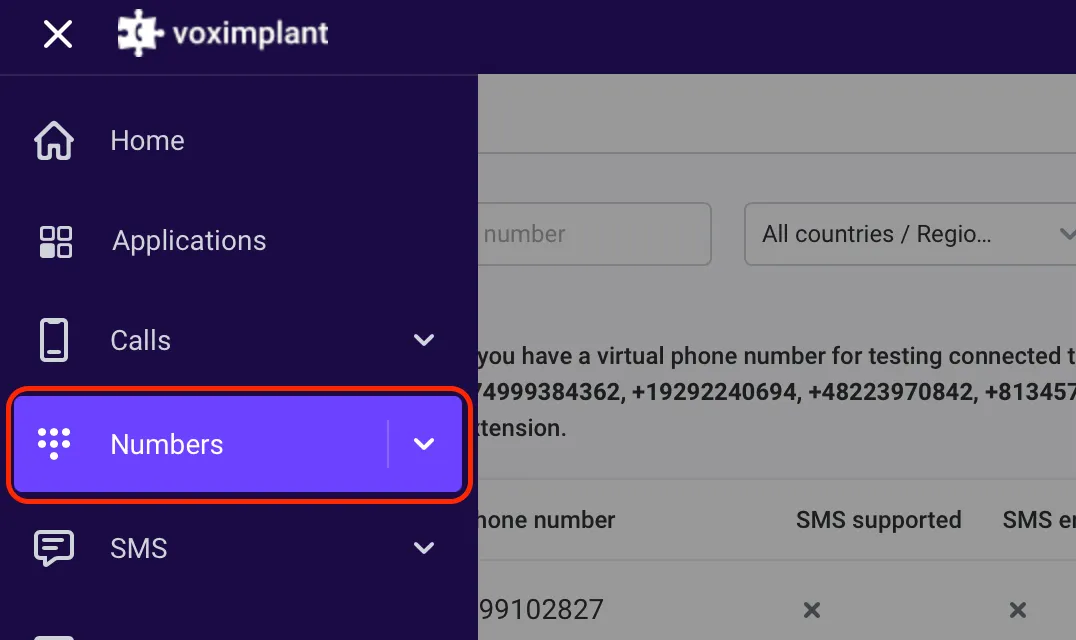
Open Numbers in Control Panel

In manage.voximplant.com, open Numbers from the main menu. Numbers section

2

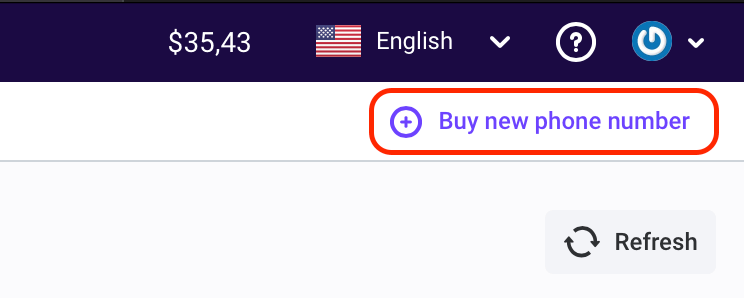
Choose Buy a new phone number

Click Buy a new phone number. Buy a new number

3

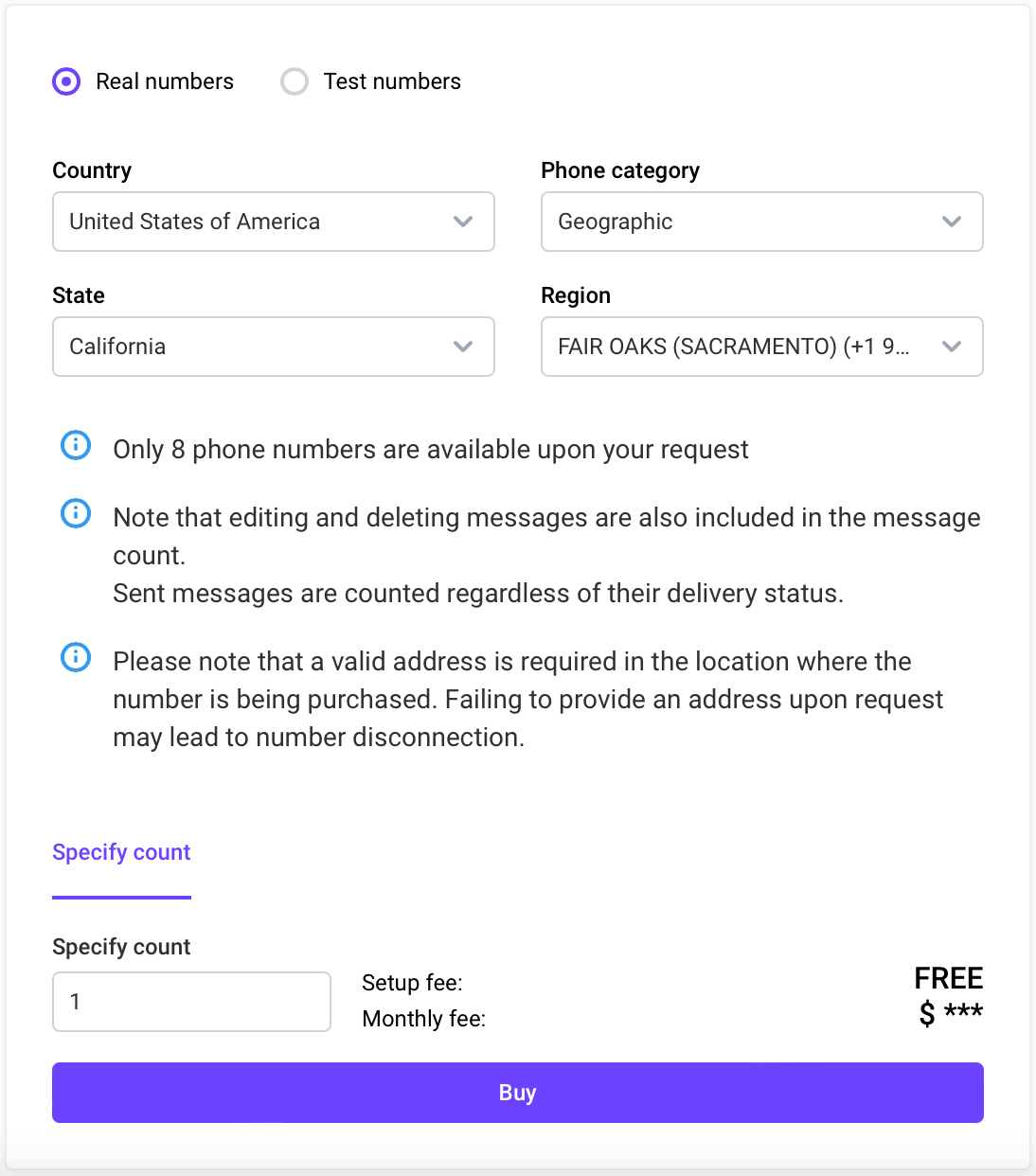
Filter and select number type

Choose country/region and select either real or test numbers. Phone number list

Some regions require additional verification steps to buy real numbers.

Test numbers require extra dialing steps and cannot be used as outbound caller ID. We recommend starting with a real number.

Attach the number to your application
1

Open your application

Go to Applications, select your app, then open the Numbers tab.

2

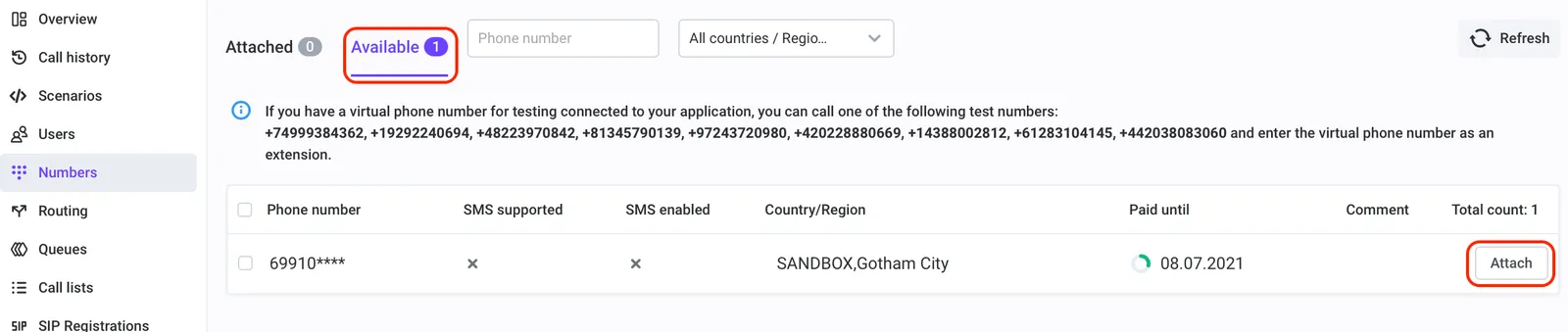
Attach number

Select an available number and click Attach. Attach a number to app

3

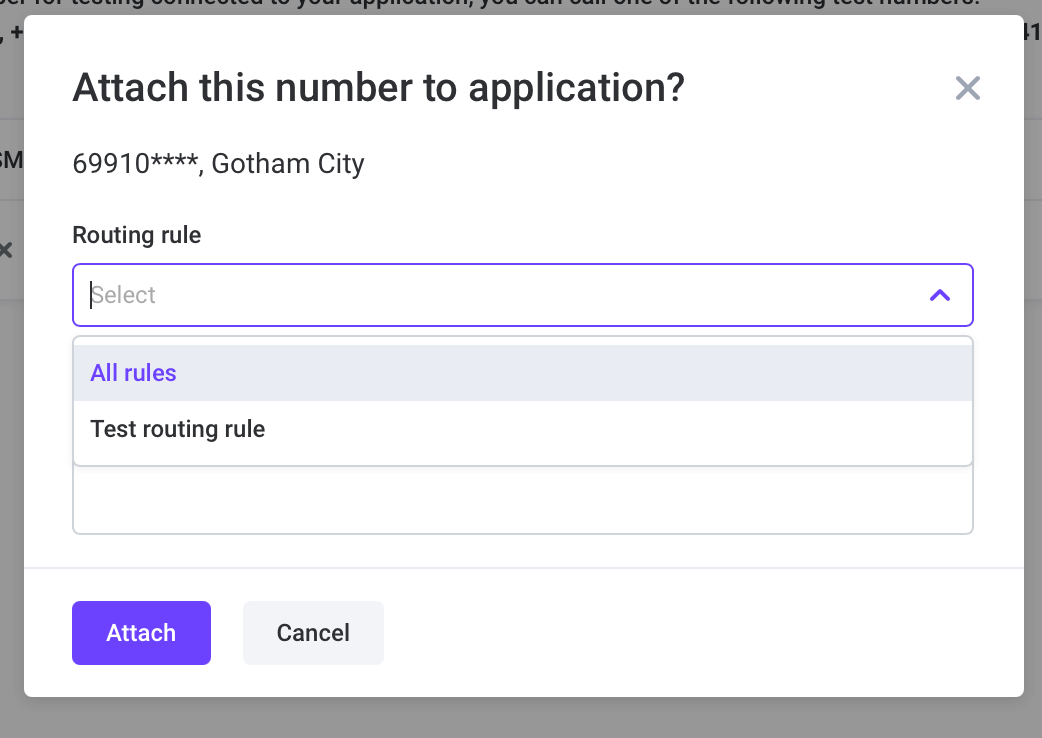
Set routing rule

Attach a routing rule now or configure it after. Select routing rule while attaching

Outbound specifics

For outbound PSTN, place calls with VoxEngine.callPSTN(destination, callerId) and use a valid rented/verified caller ID.

Outbound PSTN
1const call = VoxEngine.callPSTN("+15551234567", "+15557654321");

More information:

  • Phone numbers basic concepts
  • VoxEngine Call class
  • VoxEngine.callPSTN