

Management API
Management API enables you to perform most control panel operations using API requests.
To use management API, you need a service account. You can manage service account permissions by assigning roles. If a service account lacks assigned roles, it has limited access to basic Management API methods.
What you can do with management API
With management API, you can perform the following tasks:
- Create and edit Voximplant accounts, including child accounts.
- Create and edit service accounts, including managing their permissions.
- Edit Voximplant applications, users, and rules.
- Execute existing Voximplant scenarios.
- Exchange data with active Voximplant sessions.
- Purchase numbers, activate them, and bind them to applications.
- Check if numbers support SMS; if so, enable receiving and sending SMS.
- Manage SIP registrations.
- View call history or download it as CSV.
- Start scenarios and conferences.
- Control active Voximplant sessions.
- Automate calls.
For more information about management API, refer to the API Reference.
How to create a service account
To create a service account, follow these steps:
- Log in to the Voximplant control panel.
- Choose Settings from the main menu.
- Choose Service Accounts in the side menu.
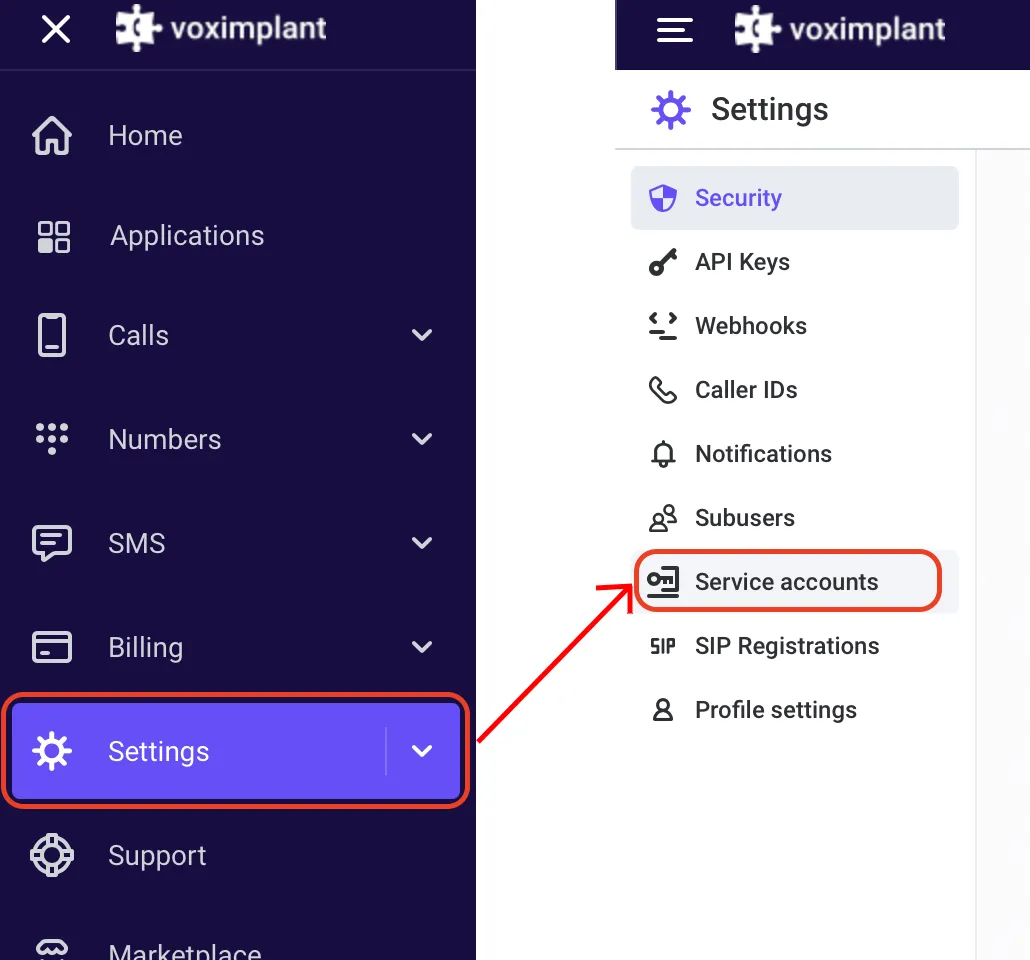
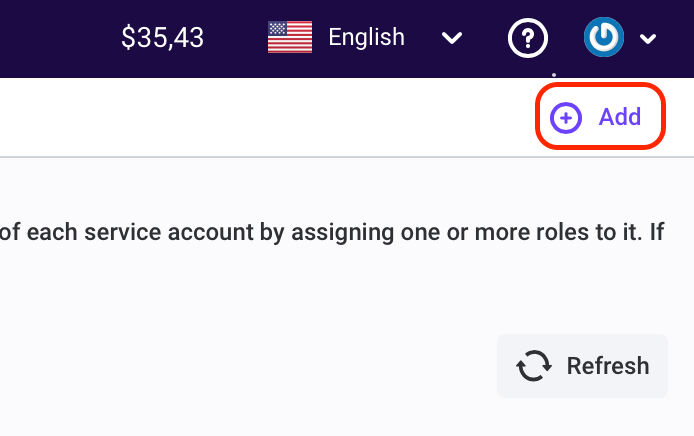
- Then click Add in the upper right corner:
- This opens a New service account editor. Provide the necessary details, including roles and description where you are going to use this service account (optional):
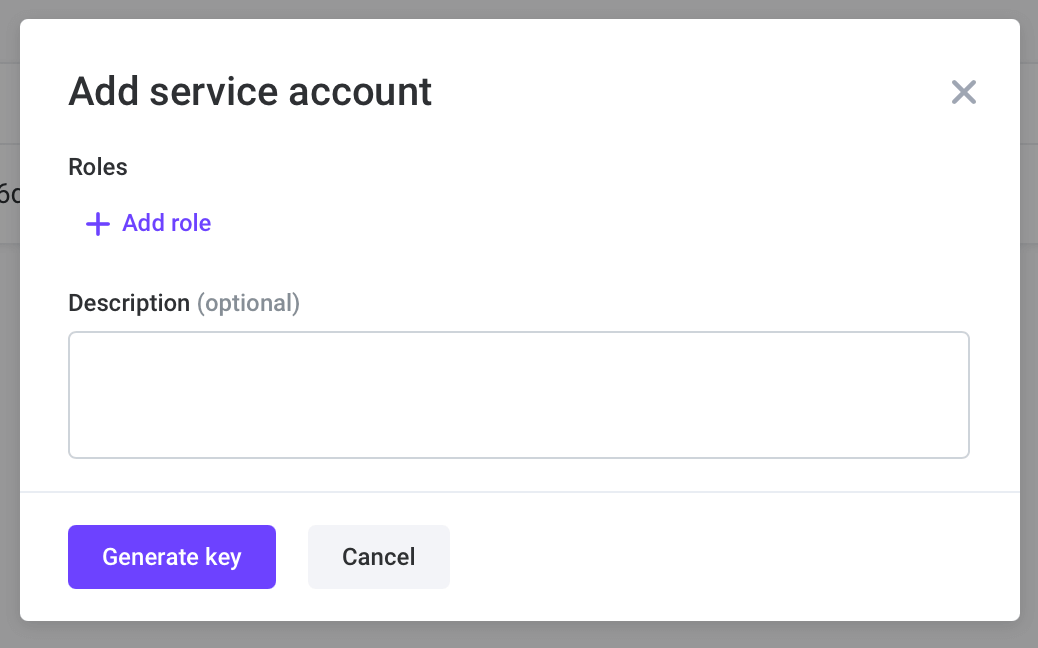
You can change roles after creating the service account.
When you click Generate key, the editor will generate a JSON file and download it to your computer. This file contains your account ID, email, the generated key ID, and the private key used for authorization with a JWT.
Service account roles
Service account roles grant additional permissions to your service account. Without any role, only the following management API requests are available:
- GetAccountInfo
- GetResourcePrice
- GetSubscriptionPrice
- GetActualPhoneNumberRegion
- GetRecordStorages
- GetRoles
- SetSubUserInfo
- GetKeys
- CreateKey
- UpdateKey
- DeleteKey
- GetKeyRoles
- SetKeyRoles
- RemoveKeyRoles
To extend the number of available management API requests for a service account, add a role to it. You can add a role while creating a service account, or you can choose an existing account in the Service accounts list, click the three dots menu, and choose Edit:

This opens a service account editor. Click Add role and choose one or more roles, depending on the rights you need to provide to the service account:
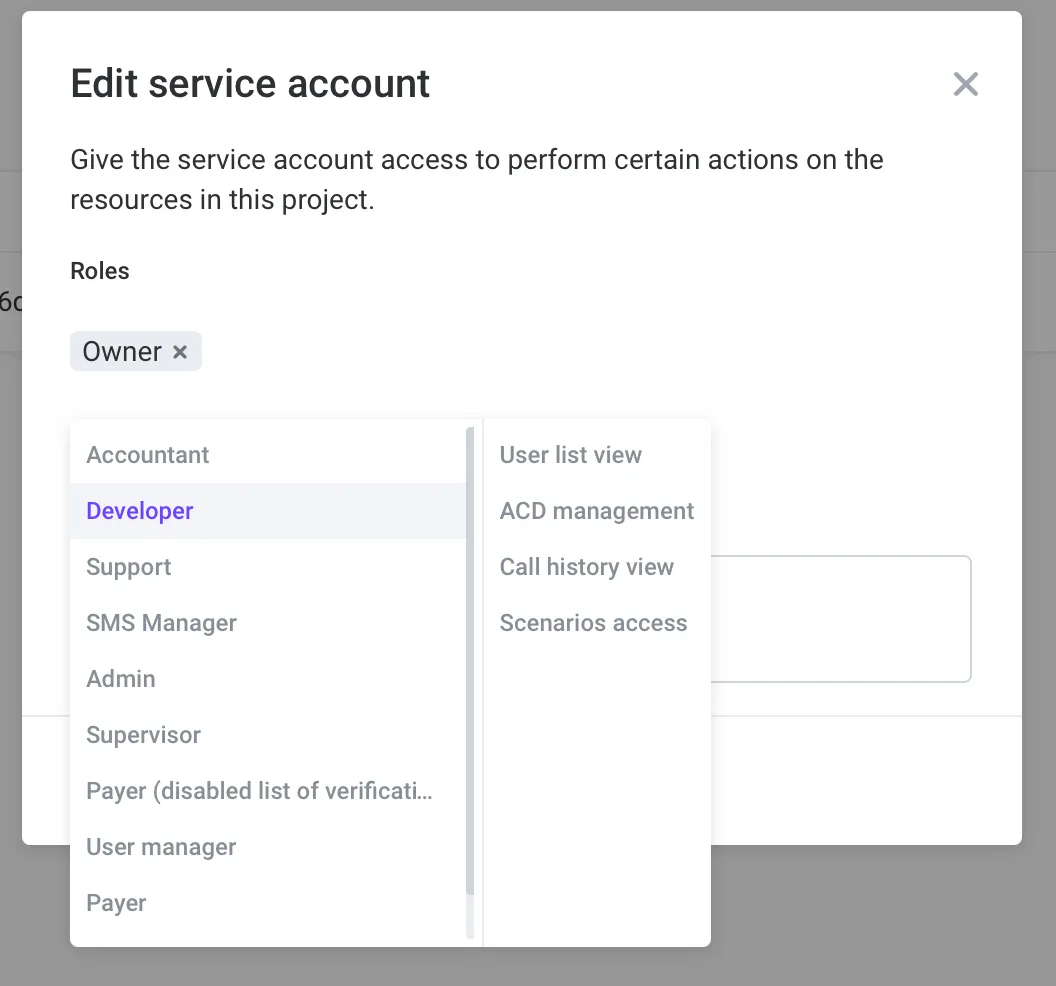
After you click Save, the service account’s permissions are updated.