

Applications
A Voximplant application is an entity that is designed to perform a specific task, similar to any other software application. You can create multiple applications for your needs and store them in the Voximplant control panel.
An application consists of your code (or scenario), users, routing rules, and more.
Before starting any new project or writing code, you must create an application.
How to create an application
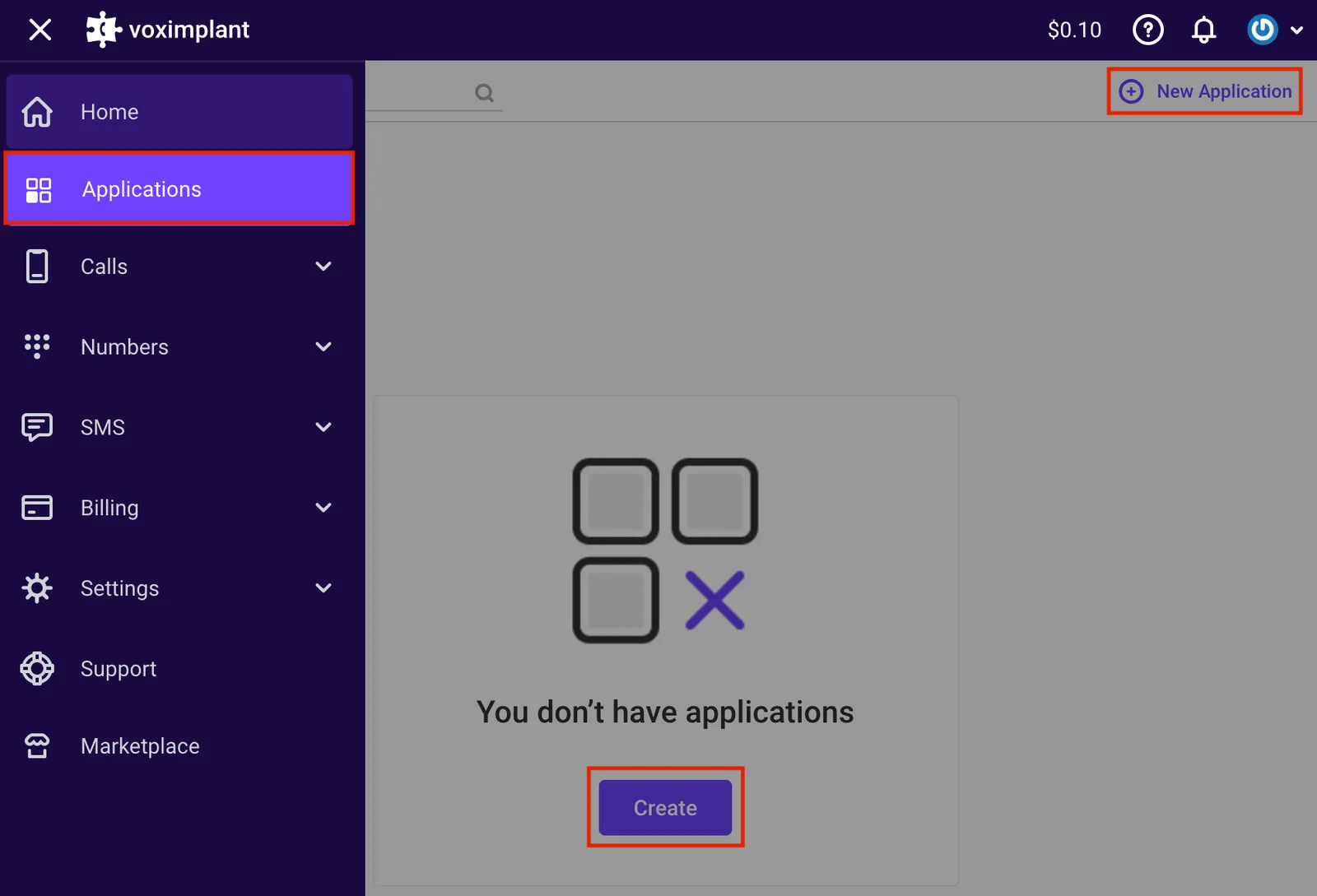
To create an application, log in to your Voximplant account or create a new one. Then, navigate to the application section from the upper left corner of the page. Click New application in the upper right corner or Create at the bottom of the page.
This opens a new application editor window where you can set it up and save by clicking Create. The newly created app appears in the application list. To modify its name, icon, or description, click the three dots menu and select Edit.
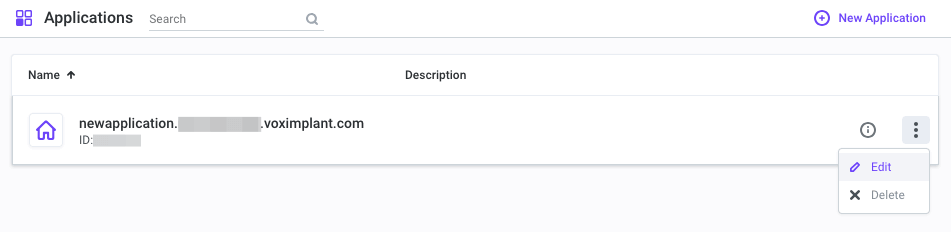 Upon creating an application, you can open it and proceed to the next steps, including creating users, a scenario, and more.
Application sections
After creating an application, you can find various sections within it.
Overview
Here, you can find a comprehensive summary of your app:
- Step-by-step application creation guide
- Scenario examples for common use cases
- Billing and payment information (for all applications)
- Active sessions
- Call statistics for the last hour, day, and 30 days
- Expiring phone numbers and SIP registrations, helping you identify and pay before the subscription expires
- Information about active sessions, calls, and manuals
Call history
This section provides access to your application’s call history. You can filter the history, view the cost, and download the session log.
Scenarios
In this section, you can write your application’s logic using one or more JavaScript scenarios. Without a scenario, you cannot make or receive calls or utilize any other application functionality. For more information about scenarios, refer here.
Users
Here, you can create and manage users, which are essential for authorizing web or mobile applications or SIP calls. For more details about users, please refer here.
Numbers
Here, you can purchase testing or real phone numbers for your application to receive calls, use as caller ID, and manage existing numbers. Attach an existing phone number to the application’s routing rule to process incoming calls. For more information about phone numbers, refer here.
Routing
In this section, you can create and manage routing rules. These rules specify which scenario to choose for making or receiving a call, processing a video conference, or executing any other scenario logic. For more information about routing rules, refer here.
SmartQueue
In this section, you can manage call queues for a contact center based on SmartQueue. SmartQueue helps distribute calls and IM conversations between agents based on their skills and availability, and creates multiple call queues.
Call lists
Here, you can create call lists to use in your scenarios and track their results. Call lists are useful when you need to call a list of phone numbers and process them with any scenario logic, such as IVR or connecting to agents. You can also use our Predictive Dialing System to connect the dialed calls to multiple agents in your contact center.
SIP registrations
In this section, you can purchase SIP registrations and manage them for usage in your scenarios. SIP registrations enable developers to integrate Voximplant Cloud into a third-party PBX. For more information about SIP, refer to the SIP guide.
WhatsApp numbers
Here, you can connect WhatsApp Business numbers to your application and process WhatsApp calls in VoxEngine scenarios. Attach a WhatsApp number to a routing rule to handle incoming WhatsApp calls. For more information about WhatsApp integration, refer to the WhatsApp guide.
Push certificates
Here, you can manage push certificates for iOS and Android applications. Push notifications are essential for receiving incoming calls on a mobile application when it is closed or for receiving instant message notifications. Create a certificate in your iOS/Android/Huawei control panel and load it into this section.
Find more information about pushes for iOS here. For Android, refer to this guide.
Dialogflow connector
Here, you can integrate your Dialogflow bot into Voximplant. Download your Dialogflow account JSON file here to use the bot in your scenarios. Learn more about Dialogflow ES and Dialogflow CX.
Key-value storage
Voximplant provides a built-in database for storing key-value pairs throughout the application. You can store unlimited key-value pairs in the database. Your keys can be up to 200 characters long, and your values can be up to 2000 characters long. For more information on how to use it, refer to this article.
Secrets
Here, you can store sensitive data such as API keys, passwords, and tokens, and use them in your scenarios. Retrieve a saved secret with VoxEngine.getSecretValue(). For more information about secret storage, refer to Secret storage.
VoxEngine CI
Here, you can manage Voximplant integration into your third-party IDE. Connect your IDE to manage your scenarios and routing rules remotely. For more information on VoxEngine CI usage, refer to this guide.