

Android: Collecting logs
Android: Collecting logs
This article will help you to collect logs from Android SDK and WebRTC.
Collect Logcat logs (from Android Studio)
Logcat is a command-line tool that dumps a log of system messages when the device throws an error and sends messages that you have written from your app with the Log class.
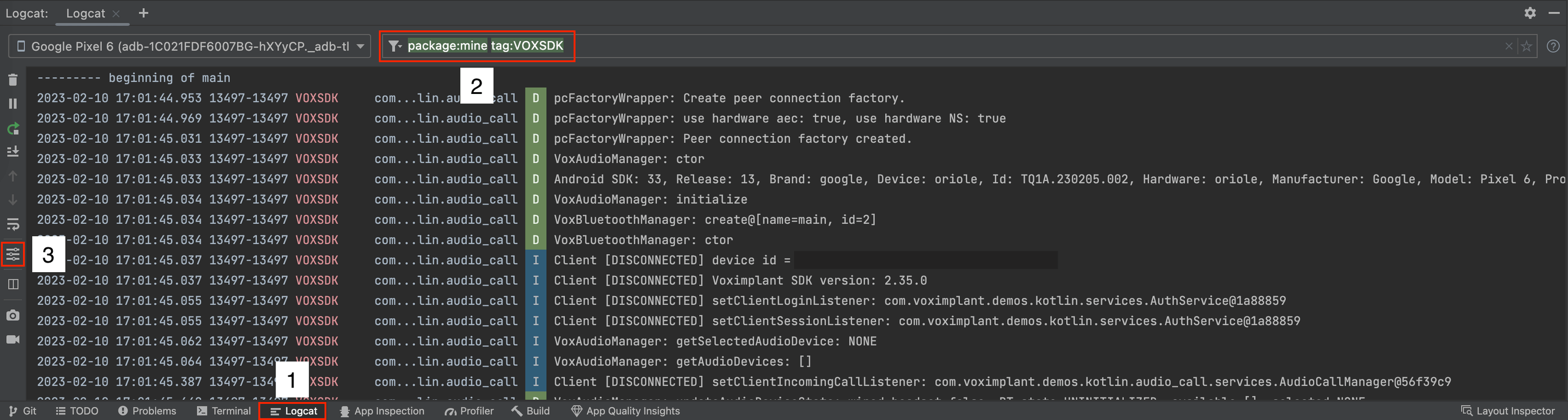
- Open Logcat tab in Android Studio or select View → Tool Windows → Logcat from the menu bar.
- Filter device logs by the
VOXSDKtag. - We recommend enabling
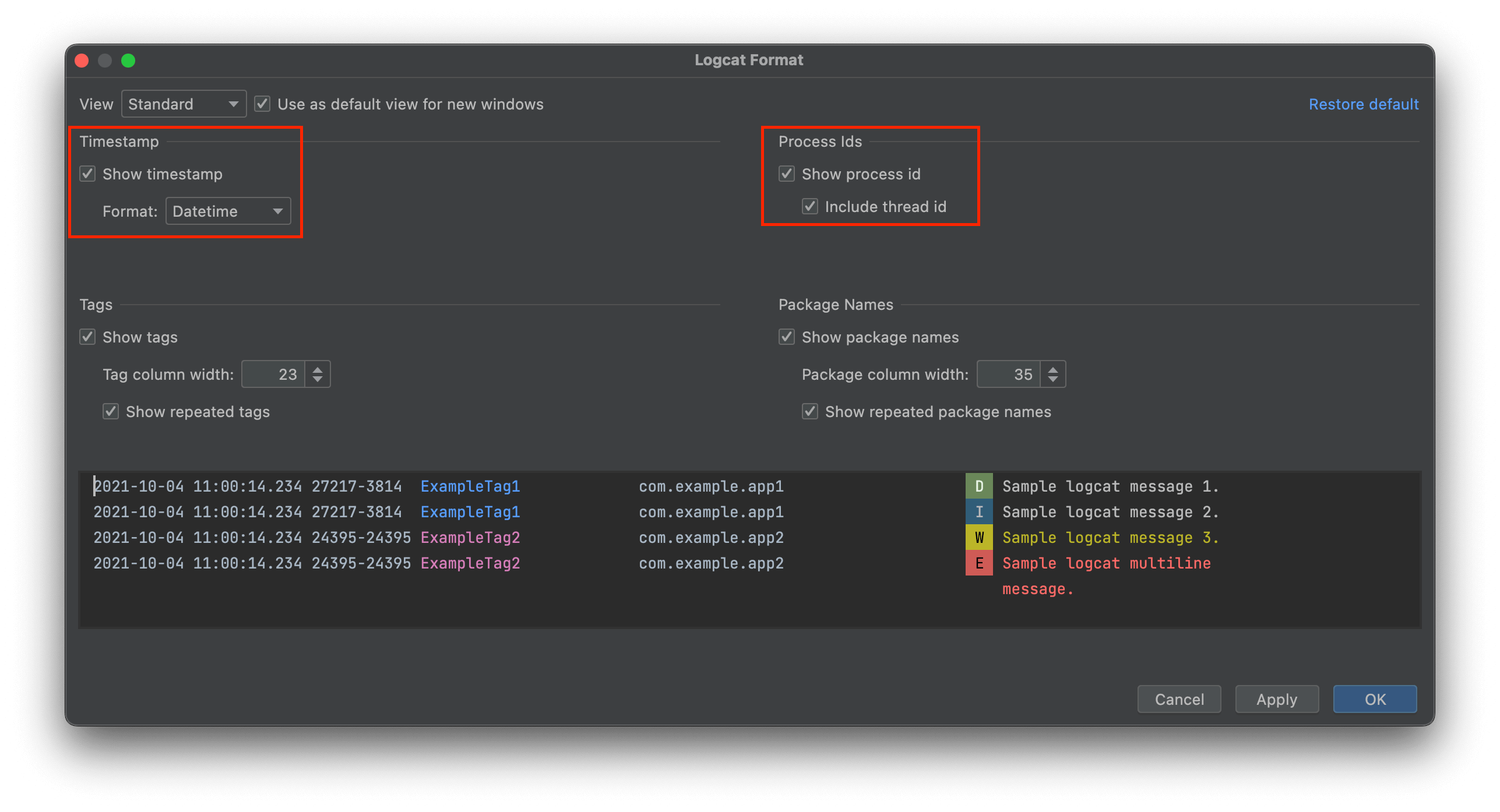
timestampinDatetimeformat andthread idin the Logcat Formatting Options.
- Reproduce the problem
- Once the problem is reproduced, select all logs in the logcat with
Ctrl + A(Windows, Linux, Chrome OS) or⌘ + A(Mac), paste it into any text editor, and save the file. The recommended file extensions are “.log” and “.txt”
Learn more about Logcat in the Android Developers user guide.
Collect logs to file (from Application)
Voximplant Android SDK provides the ILogListener interface that allows developers to collect the SDK log messages and save them in any convenient place, for example into a file.
ILogListener interface allows the applications to implement a log handler method that provides the following information:
- log message level represented by LogLevel enum
- log message in String format
A file logger can be configured at an application startup.
Extended logs
Voximplant Android SDK allows developers to enable extended logs that include WebRTC logs of level info, warnings, and errors.
It is important to consider that extended logs will lead to a significant increase in the volume of logs, and may also affect application performance. It is recommended that extended logs are enabled only for diagnosing problems with audio and video transmission and at the request of technical support specialists.
To enable extended logs, use ClientConfig.enableDebugLogging on the SDK initialization: